Guides and Tutorials
How to do the most common things in DataSort, one step at a time.
Start here
Short guides for the things people do most in DataSort, each filmed in the app as it is today. Pick a guide from the list, then play the video or follow the numbered steps.
Getting started
- Upload a spreadsheetOpen an Excel, CSV or JSON file in DataSort.
- Clean a sheet with AIFix names, dates, numbers and blank rows in one step.
- Pick up where you left offYour work is saved in this browser as you go. Save a copy under a name and open it again later.
Edit your table
- Edit a cellChange any value in the table by hand.
- Add, duplicate or delete a rowInsert a blank row anywhere, copy one, or remove one.
- Add, rename or duplicate a columnInsert a column, copy one with its values, or give a column a new name.
- Move a columnDrag a column to where you want it.
- Filter rowsShow only the rows you want, by the values in a column.
- Put rows in order by a columnArrange the rows from lowest to highest, or highest first, by any column.
- Undo and redoTake back any change, and bring it back again.
- View the table full screenGive the table the whole screen and choose how many rows a page shows.
- Work with selected rowsSelect rows to copy, delete or export just those.
Work with sheets
- Work with sheetsMove between sheets, rename them, add a blank one, and see every sheet at once.
- Combine sheets into one tableStack several sheets or files into a single new tab.
Tidy your data
- Remove duplicate rowsFind repeated rows across a sheet and remove them in one step.
- Find and replaceChange a value everywhere it appears, in one sheet or all of them.
- Review what the AI fixedSee every change the AI made, grouped by kind, and put any of them back.
- Extract and standardizePull dates, phone numbers or emails into clean new columns in one format.
Ask the AI
- Ask the AI assistantTell the assistant what you want done to your data, and it makes the change.
- Choose the AI modelPick Auto, Fast, Classic, Smart or Deep for the assistant and the AI tools.
- Find an earlier chatYour assistant chats are saved, one for each workbook, so you can read them again.
- Get an AI Insights reportA written report on your sheet with charts, every figure measured from your data.
- Add map coordinatesTurn a city or address column into latitude, longitude and a country code.
Compare files
- Compare two Excel filesSee every row and cell that changed between two versions of a spreadsheet.
- Compare two JSON filesSee every value that was added, removed or changed between two JSON documents.
Export your data
Getting started
How to upload a spreadsheet in DataSort
Open an Excel, CSV or JSON file in DataSort.
Step by step
-
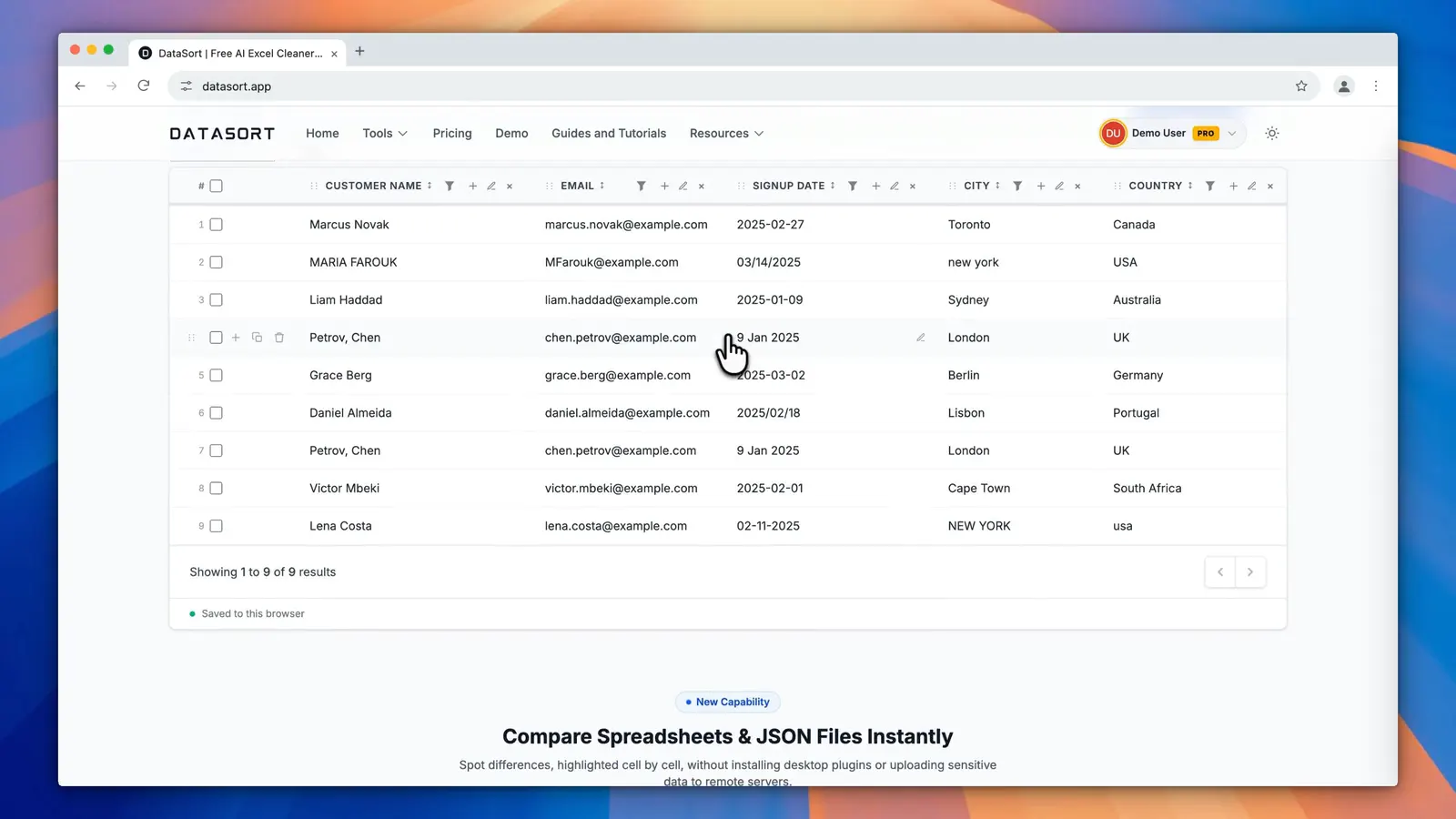
Select File, or drop an Excel, CSV or JSON file onto the upload box.

-
The file opens as a sheet you can read, edit and clean.


Getting started
How to clean a sheet with AI in DataSort
Fix names, dates, numbers and blank rows in one step.
Step by step
-
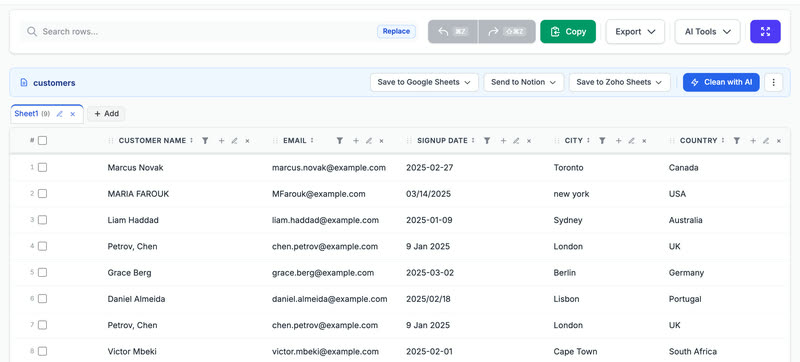
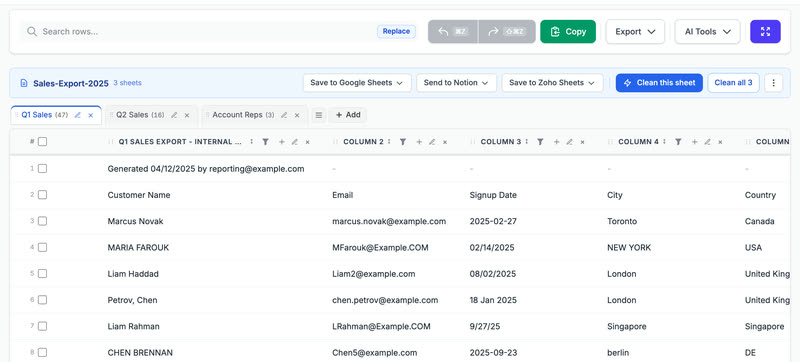
Open your file. Mixed case names, dates in several formats and a title row all show as they are.
-
Select Clean this sheet.

-
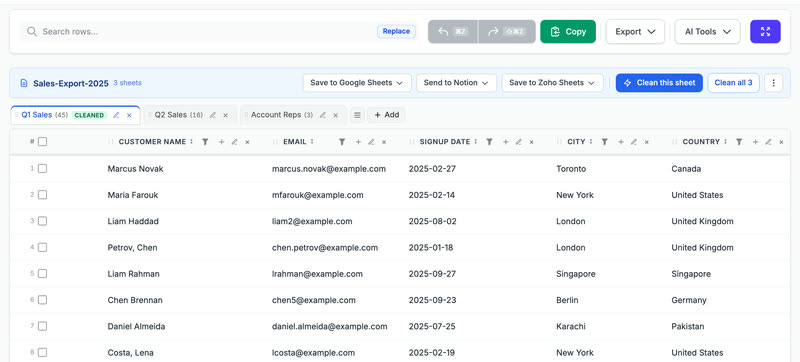
The sheet comes back cleaned: names, emails, dates and countries each in one format.
-
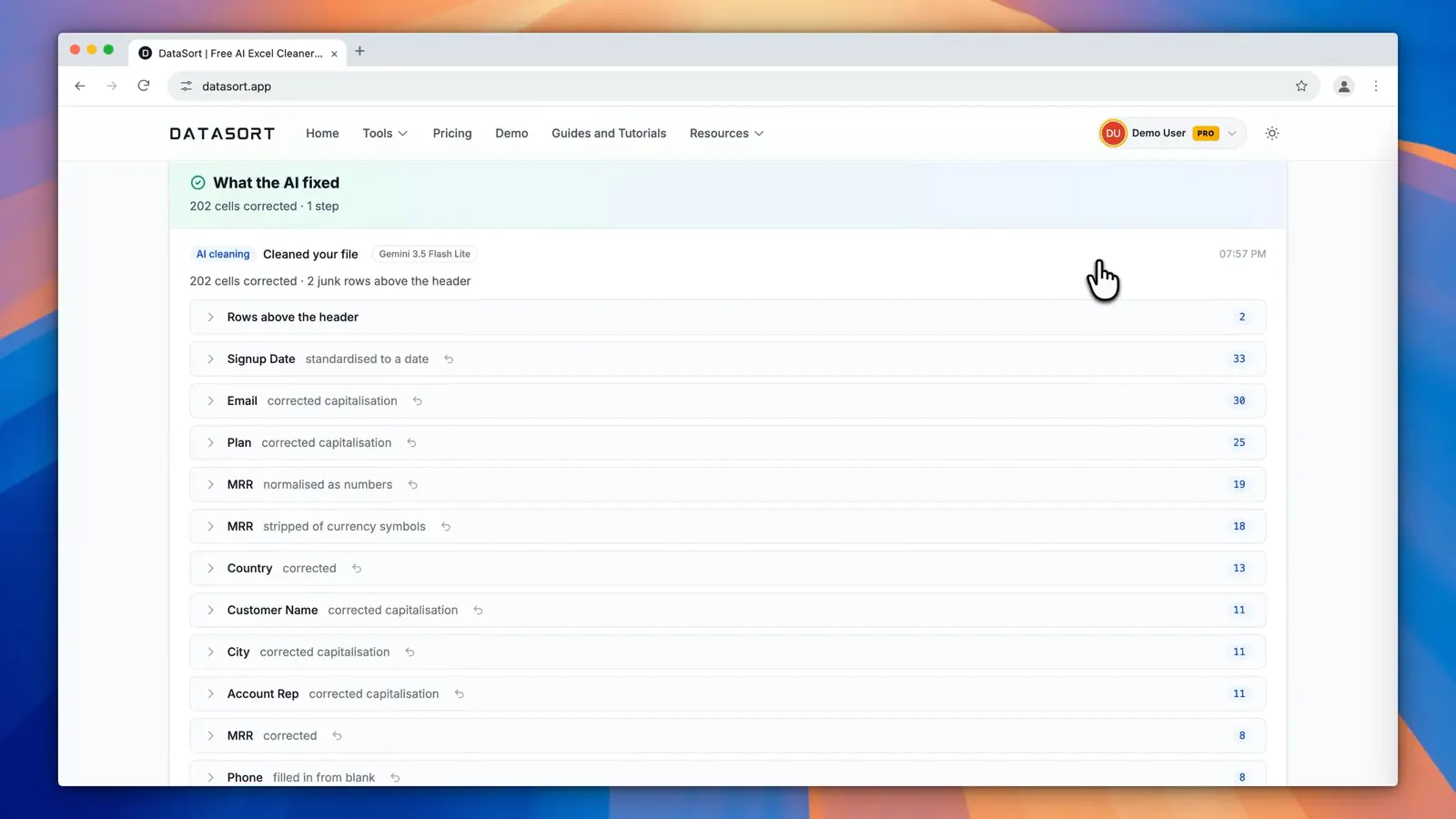
Below the table, What the AI fixed lists every change. Any change can be put back with one click.



Getting started
How to pick up where you left off in DataSort
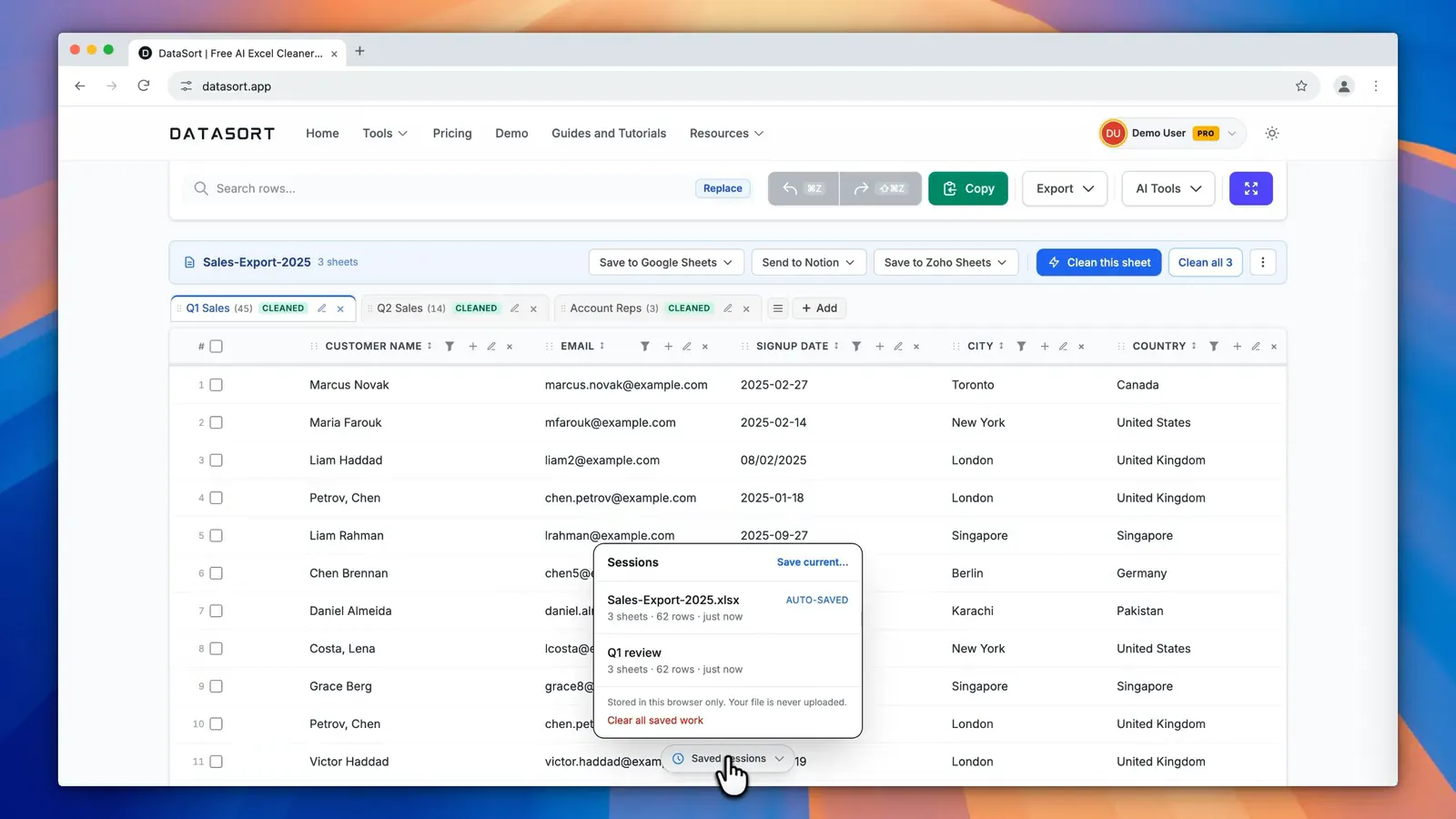
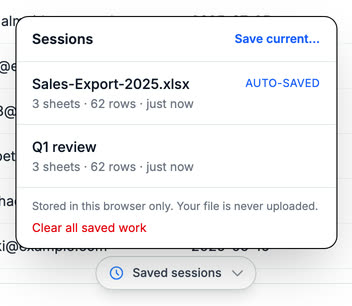
Your work is saved in this browser as you go. Save a copy under a name and open it again later.
Step by step
-
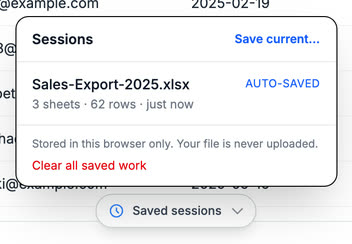
Select Saved sessions. The latest version of your work is always there as Auto-saved.
-
Select Save current and give it a name, such as Q1 review.

-
Your named session is listed. Select it any time to open that workbook again.


Edit your table
How to edit a cell in DataSort
Change any value in the table by hand.
Step by step
-
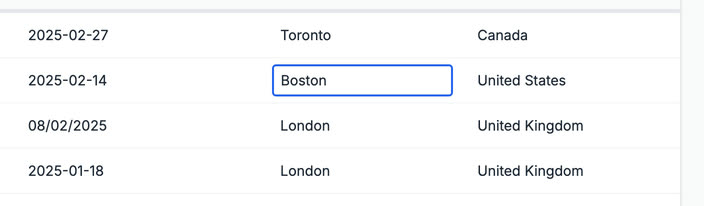
Double click a cell, or point at it and select the pencil.
-
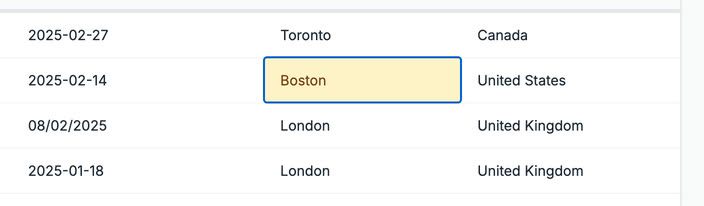
Press Enter to keep the change. Edited cells are marked, and Undo puts the old value back.


Edit your table
How to add, duplicate or delete a row in DataSort
Insert a blank row anywhere, copy one, or remove one.
Step by step
-
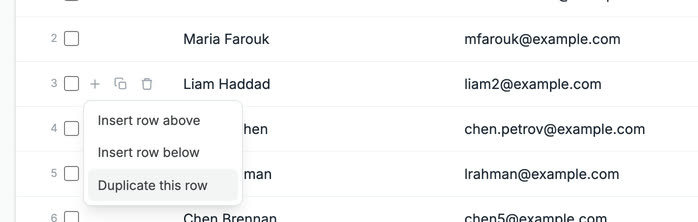
Point at a row and select the plus sign beside it. Choose Insert row above, Insert row below or Duplicate this row.
-
The copy appears right below and is highlighted until you change something else.

-
To remove a row, point at it and select the bin. Undo brings it back.



Edit your table
How to add, rename or duplicate a column in DataSort
Insert a column, copy one with its values, or give a column a new name.
Step by step
-
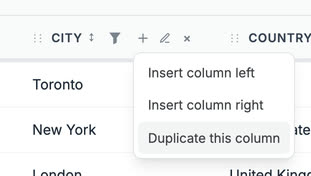
Select the plus sign in a column heading. Choose Insert column left, Insert column right or Duplicate this column.
-
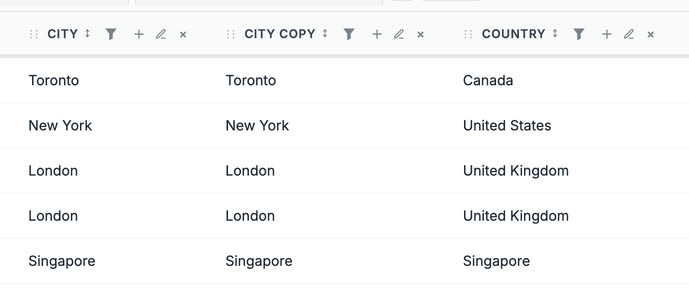
Duplicate this column copies every value into a new column beside it.
-
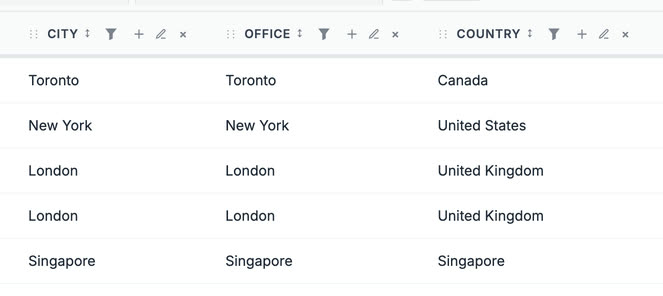
Select the pencil in a heading to rename it. Type the new name and press Enter. The x hides a column.


Edit your table
How to move a column in DataSort
Drag a column to where you want it.
Step by step
-
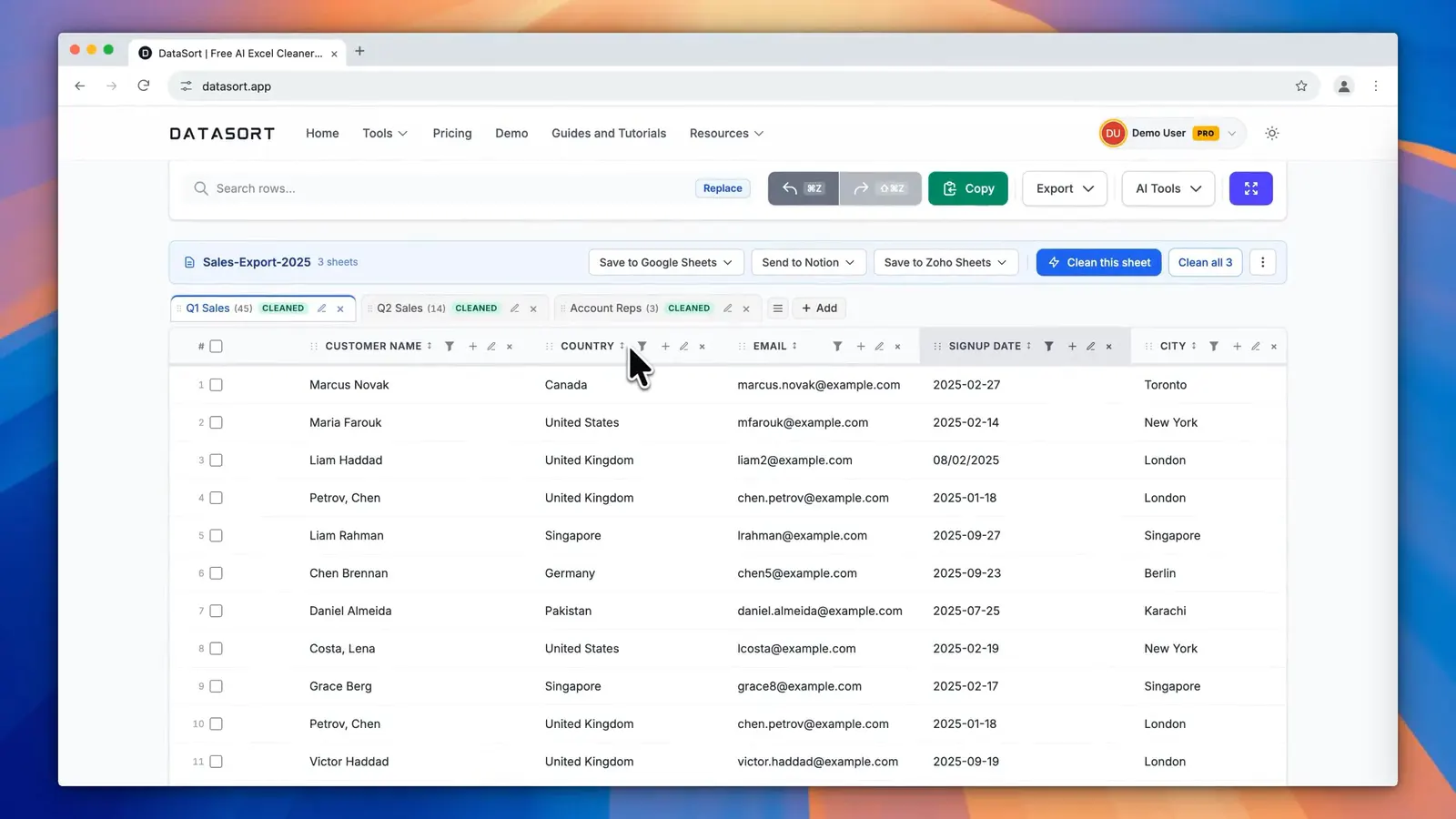
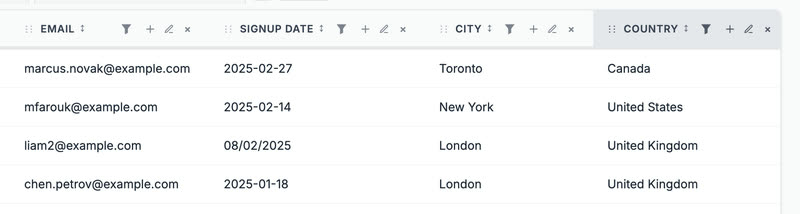
Hold the grip at the left of a column heading.
-
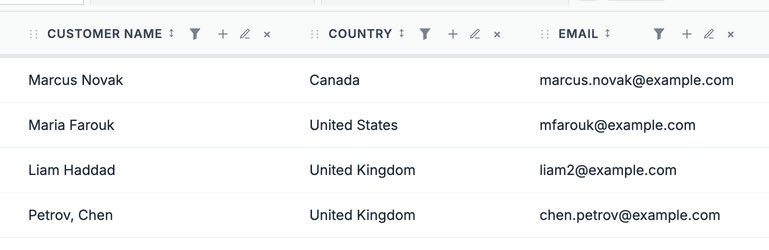
Drag it onto another column and let go. Country now sits before Email.


Edit your table
How to filter rows in DataSort
Show only the rows you want, by the values in a column.
Step by step
-
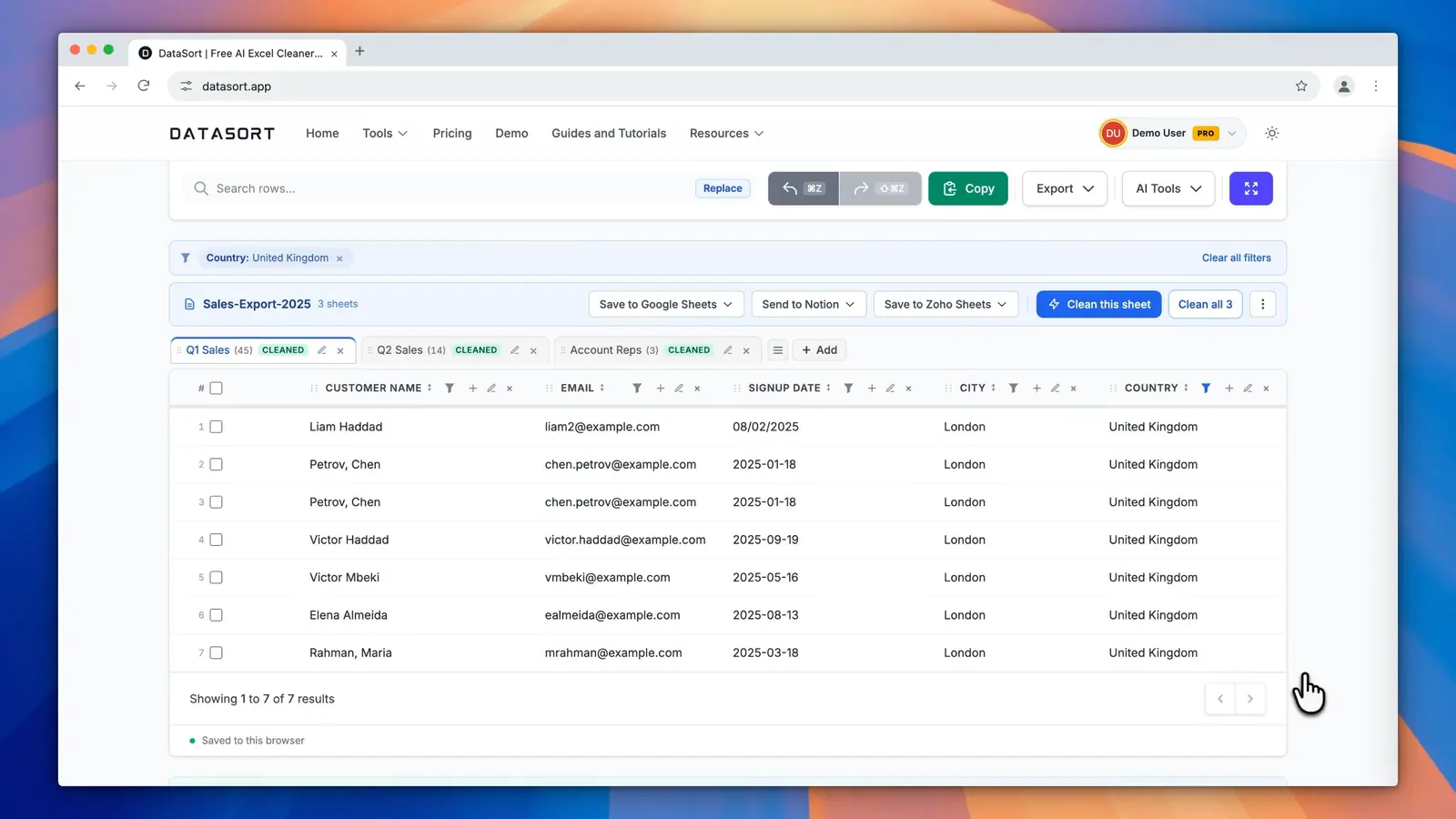
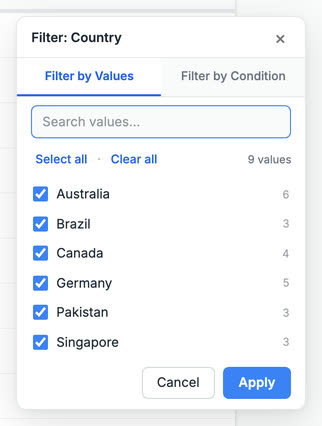
Select the funnel in a column heading to see every value in that column.
-
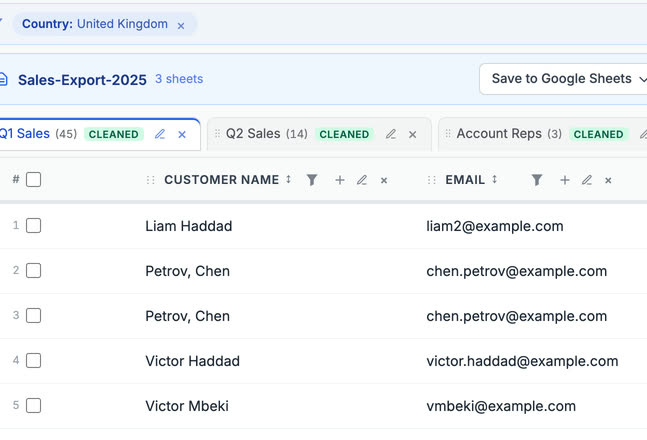
Clear the list, then select the values you want to keep, such as United Kingdom.

-
Select Apply. The table shows only those rows, and the bar above names the filter so you can remove it.


Edit your table
How to put rows in order by a column in DataSort
Arrange the rows from lowest to highest, or highest first, by any column.
Step by step
-
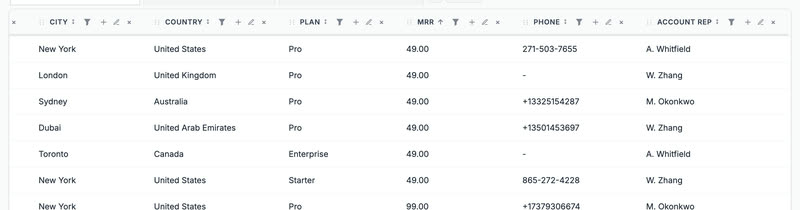
Select a column name, such as MRR. Rows go from lowest to highest.
-
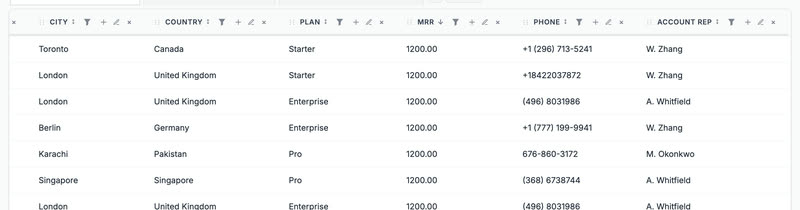
Select it again for highest first. A third time puts the rows back in their original order.


Edit your table
How to undo and redo in DataSort
Take back any change, and bring it back again.
Step by step
-
Every change can be taken back. After an edit, the Undo button above the table lights up.
-
Select Undo, or press Ctrl+Z (Cmd+Z on a Mac). Redo, or Ctrl+Y, puts the change back again.


Edit your table
How to view the table full screen in DataSort
Give the table the whole screen and choose how many rows a page shows.
Step by step
-
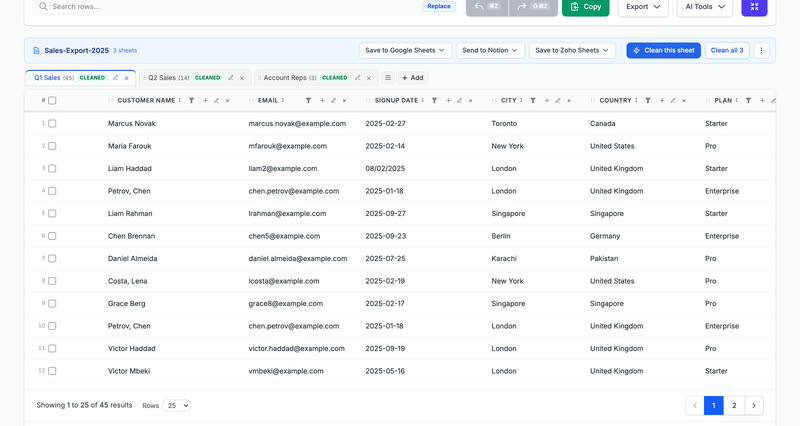
Select the full screen button at the right end of the toolbar.

-
The table fills the screen. Press Esc, or the same button, to leave.
-
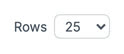
In full screen, choose how many rows a page shows: 25, 50, 100 or all.


Edit your table
How to work with selected rows in DataSort
Select rows to copy, delete or export just those.
Step by step
-
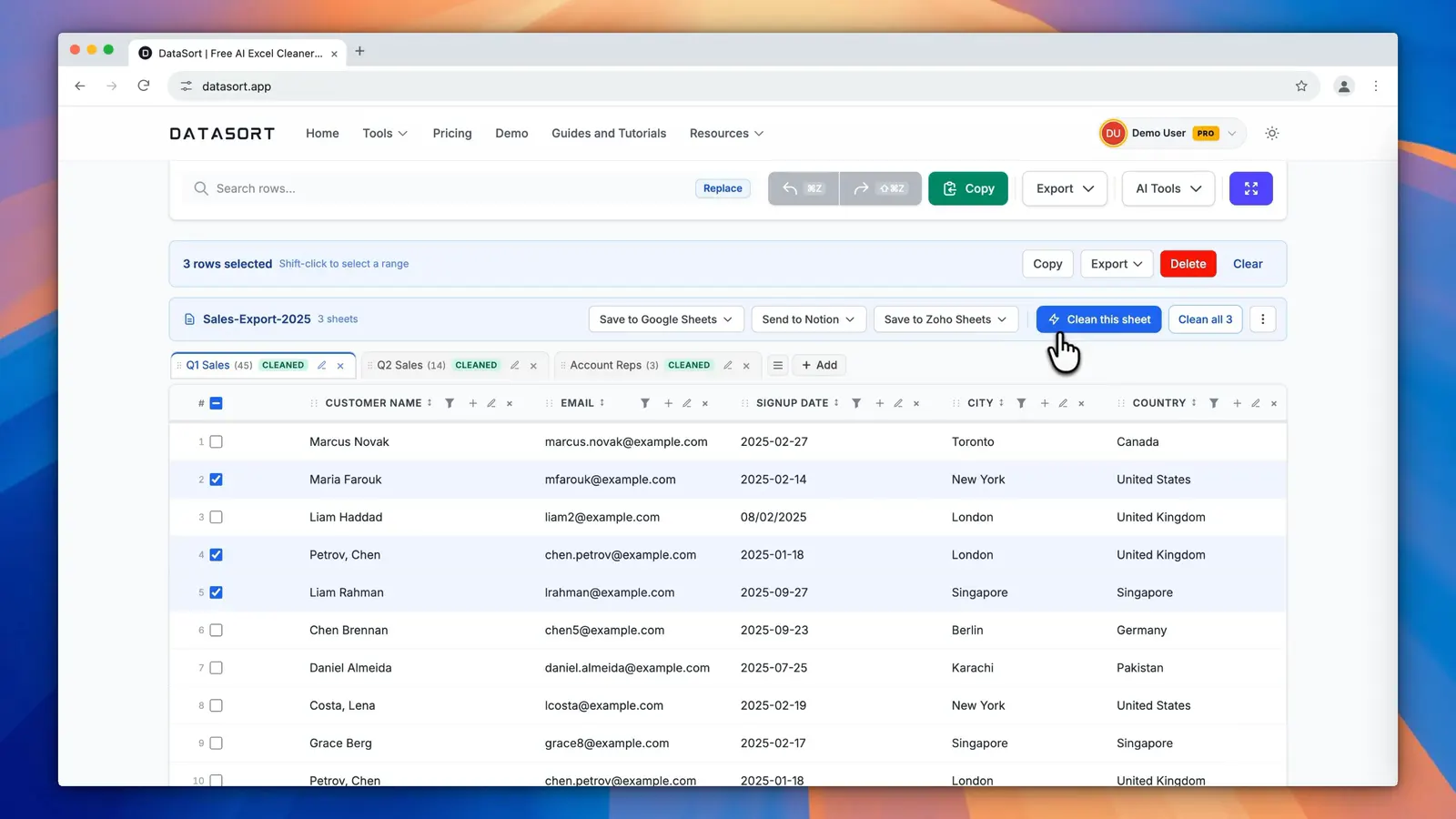
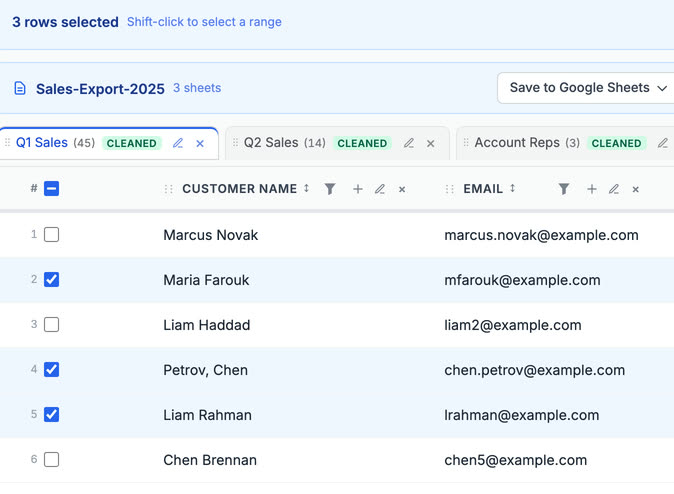
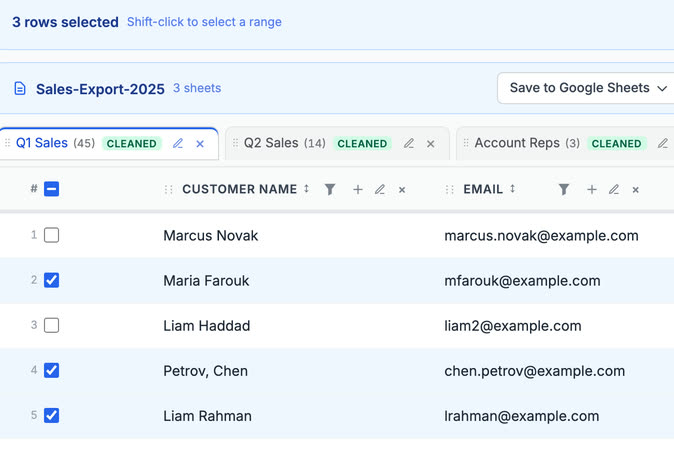
Select the boxes at the start of the rows you want. Hold Shift to select a range.
-
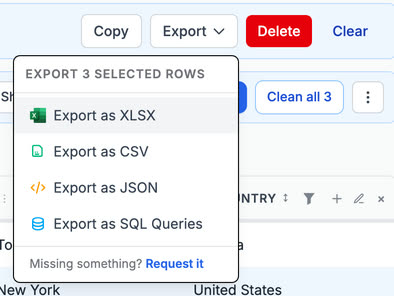
Use the bar above the table: Copy, Delete, or Export to open the choice of file types.
-
Choose a format. The file holds only the rows you selected.


Work with sheets
How to work with sheets in DataSort
Move between sheets, rename them, add a blank one, and see every sheet at once.
Step by step
-
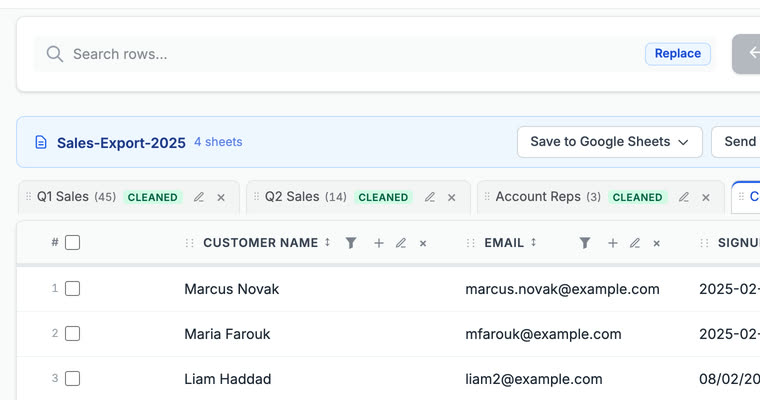
Each sheet of your file is a tab above the table. Select a tab to open that sheet.

-
Double click a tab, or select its pencil, to rename it. Press Enter to keep the name.

-
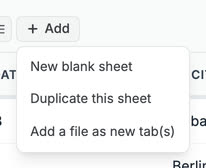
Select Add for a new blank sheet, a copy of this sheet, or another file as new tabs.
-
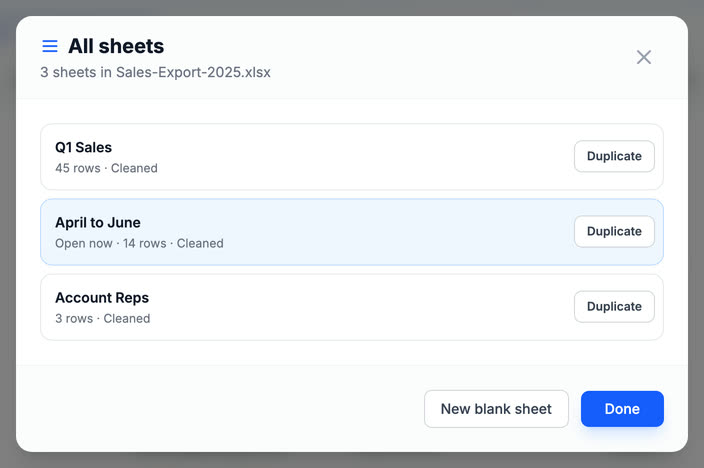
With many sheets, the list button beside the tabs shows every sheet with its rows, so you can jump to any of them.


Work with sheets
How to combine sheets into one table in DataSort
Stack several sheets or files into a single new tab.
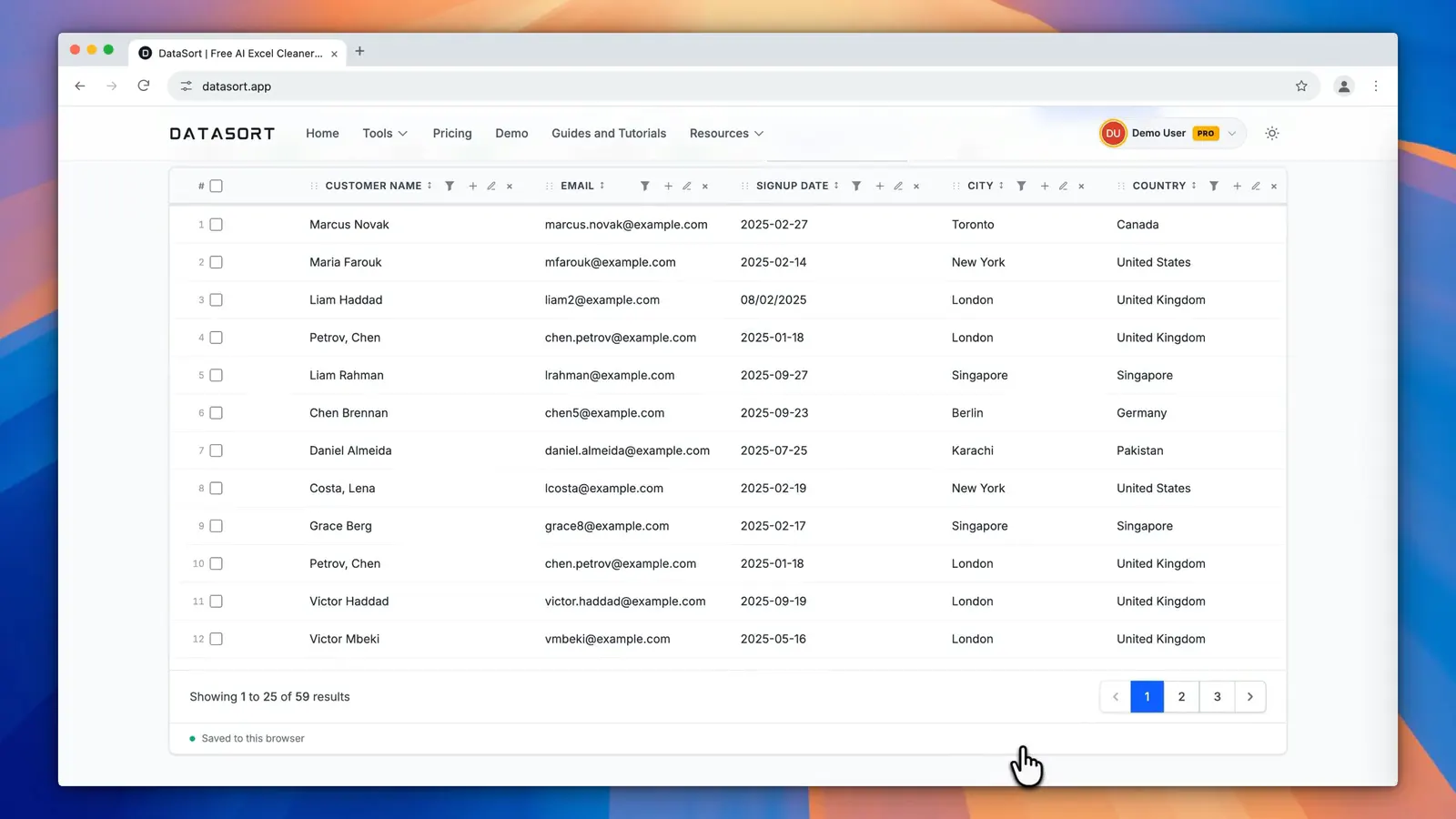
Step by step
-
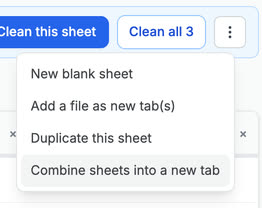
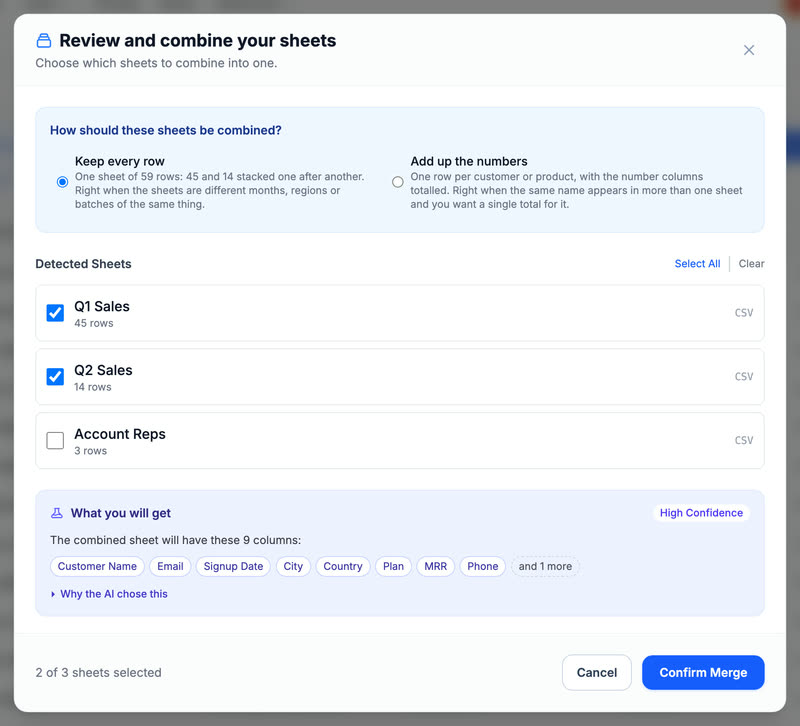
Open More sheet actions next to the tabs and choose Combine sheets into a new tab.
-
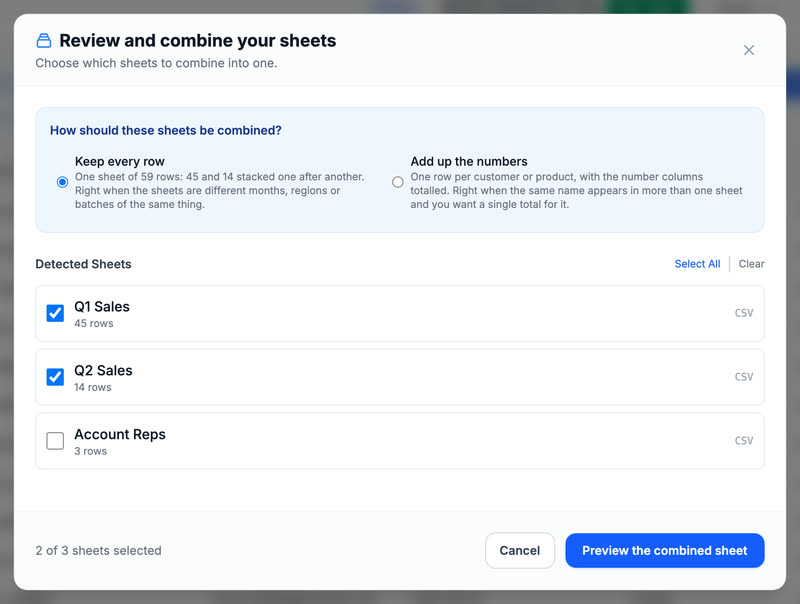
Choose Keep every row, then select the sheets to combine.
-
Select Preview the combined sheet to see the columns you will get.
-
Select Confirm Merge. The rows open in a new Combined tab and the original sheets stay as they were.


Tidy your data
How to remove duplicate rows in DataSort
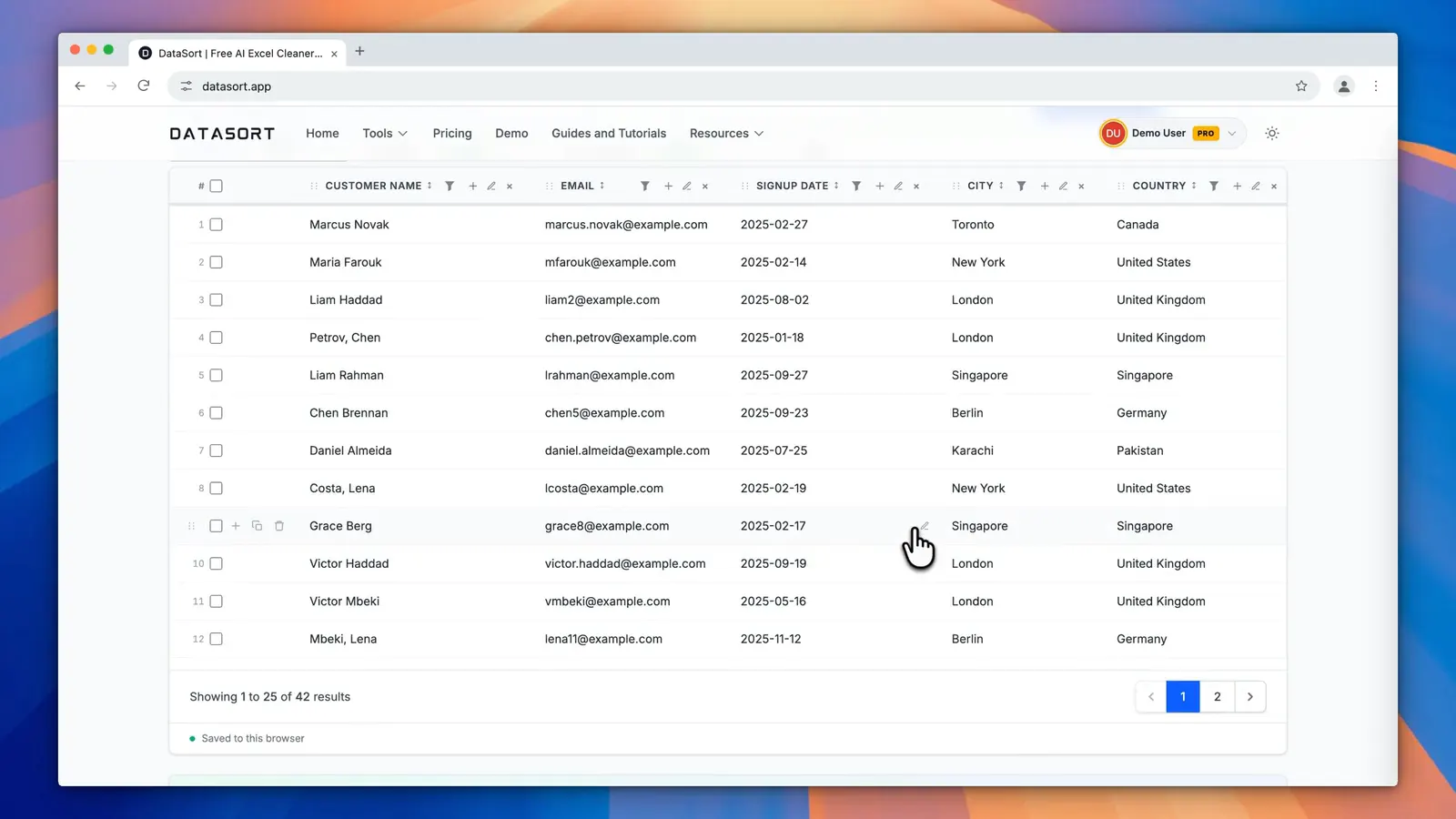
Find repeated rows across a sheet and remove them in one step.
Step by step
-
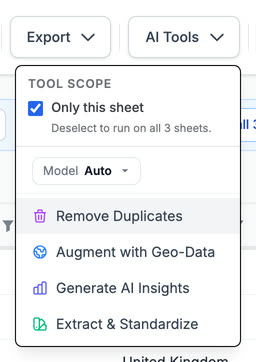
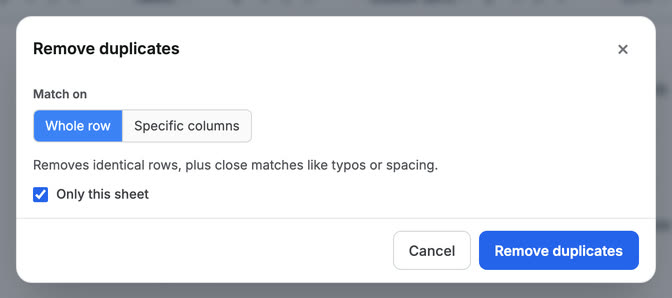
Open AI Tools and choose Remove Duplicates.
-
Match on the whole row, or pick the columns that make two rows the same.
-
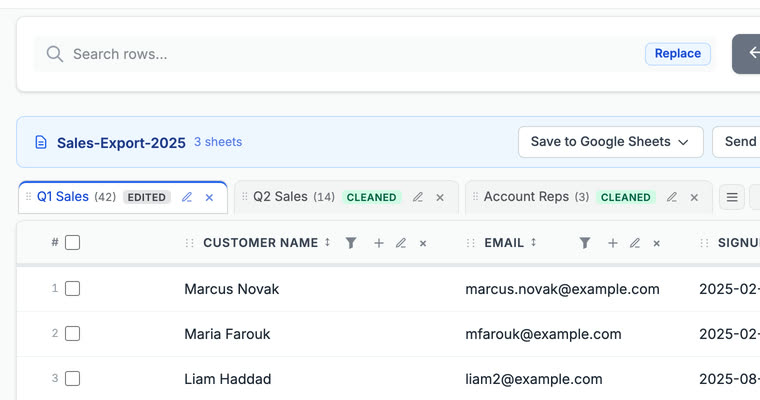
Select Remove duplicates. The sheet keeps one copy of each row.


Tidy your data
How to find and replace in DataSort
Change a value everywhere it appears, in one sheet or all of them.
Step by step
-
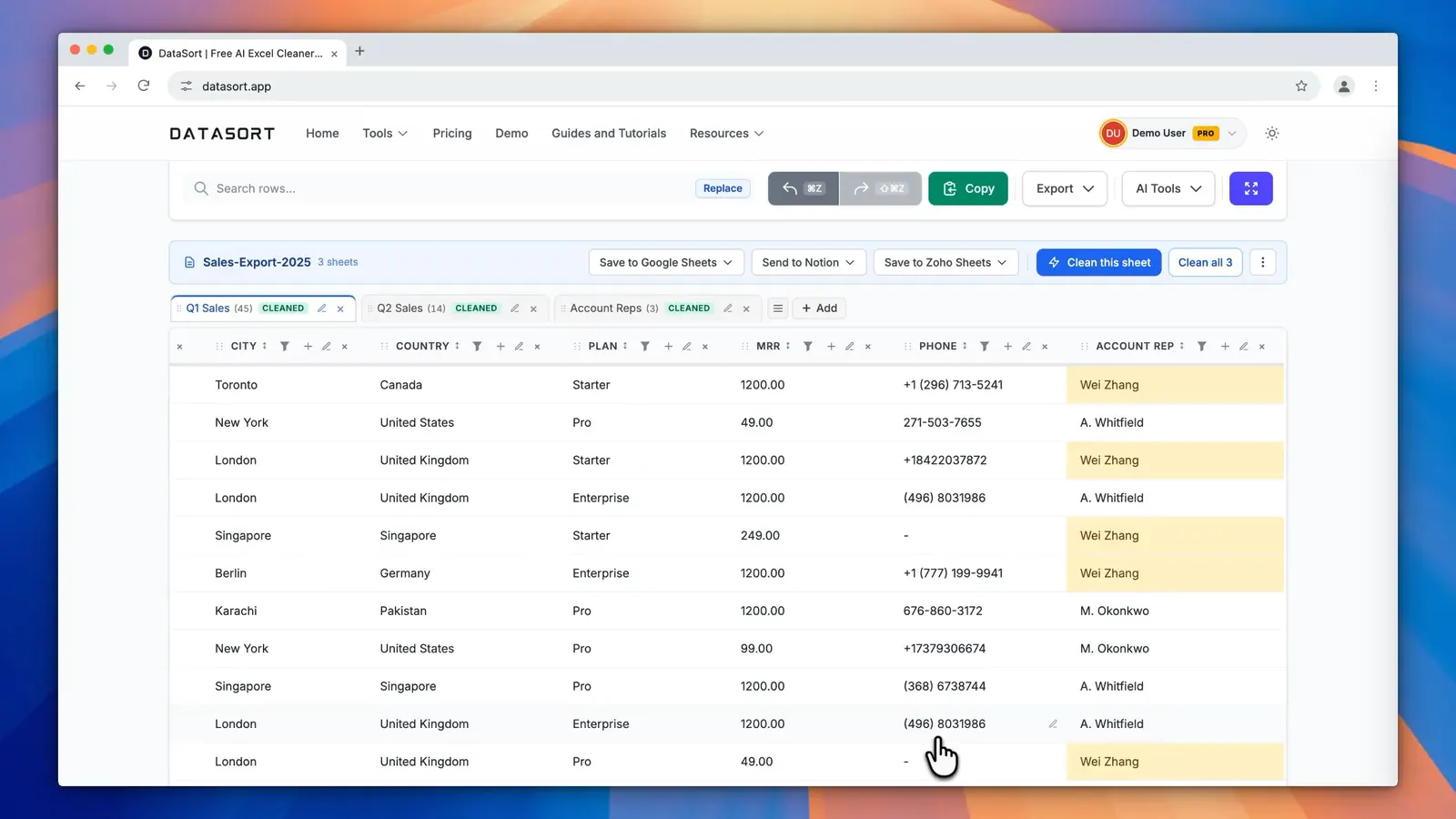
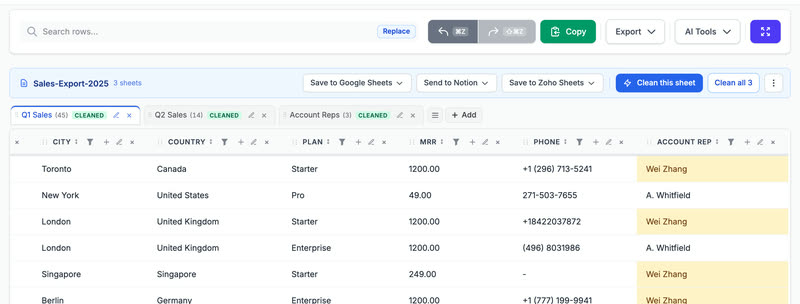
Select Replace inside the search box above the table.

-
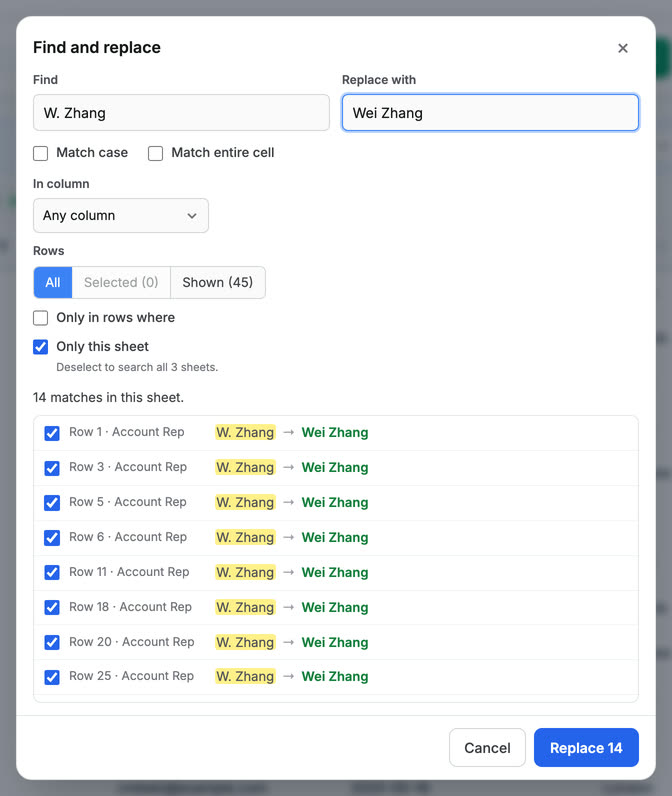
Type what to find and what to replace it with. Every match is listed before anything changes.
-
Select Replace. One step of Undo puts every cell back.


Tidy your data
How to review what the AI fixed in DataSort
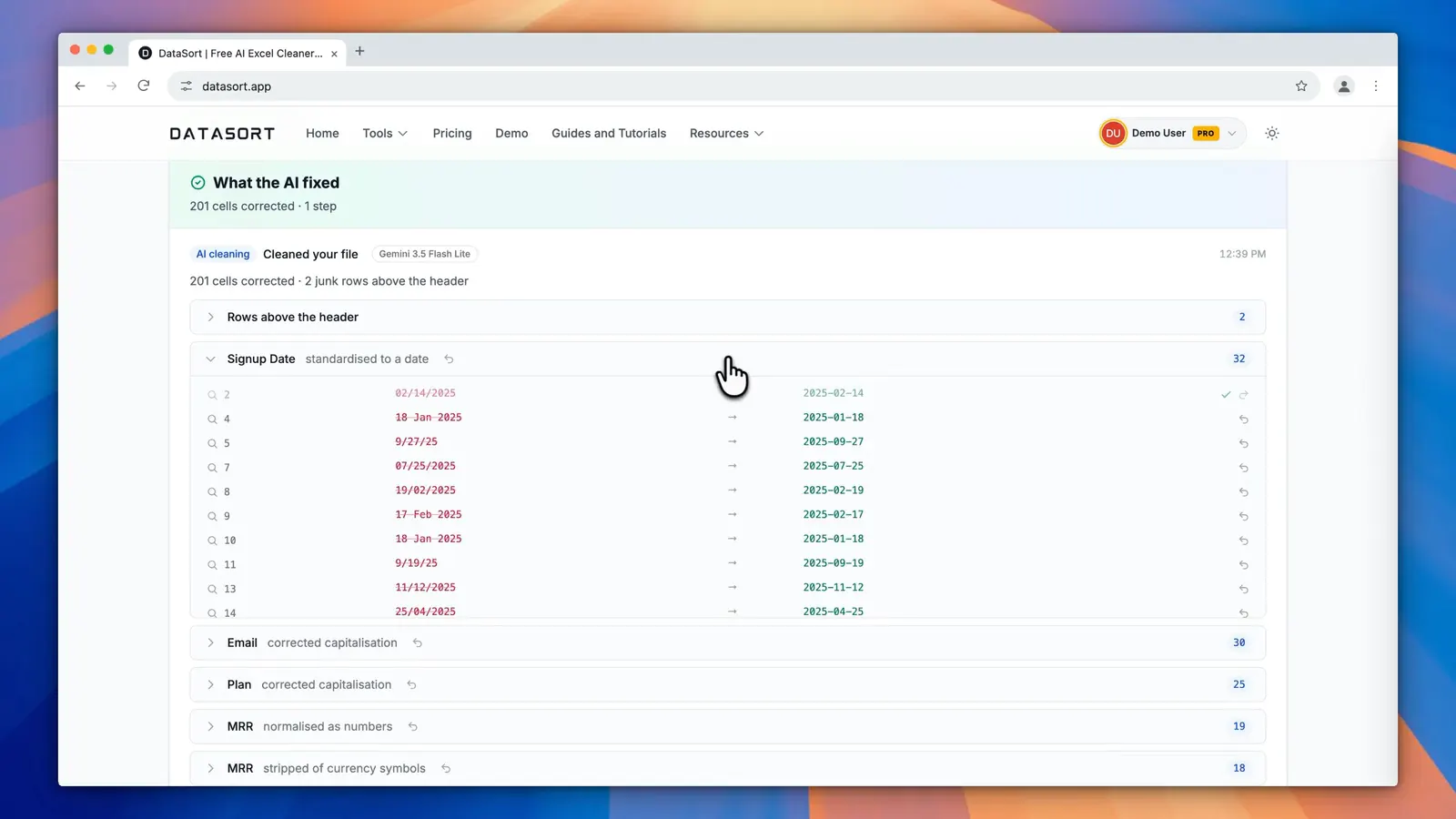
See every change the AI made, grouped by kind, and put any of them back.
Step by step
-
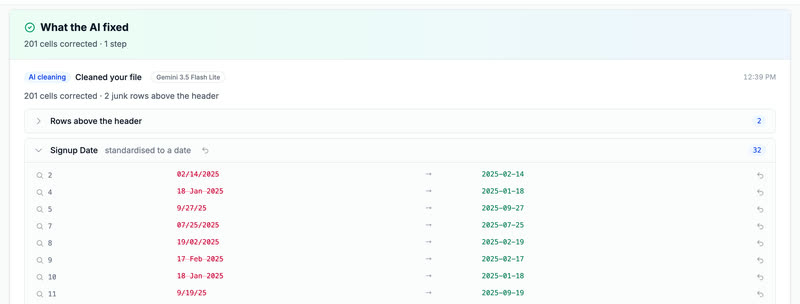
After a clean, What the AI fixed below the table lists every change, grouped by what was done.

-
Open a group to see each cell before and after.
-
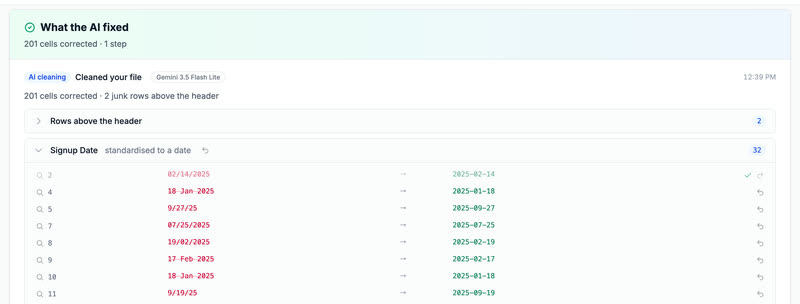
Put back the original value of any line, or a whole group, in one click. Select it again to restore the AI value.


Tidy your data
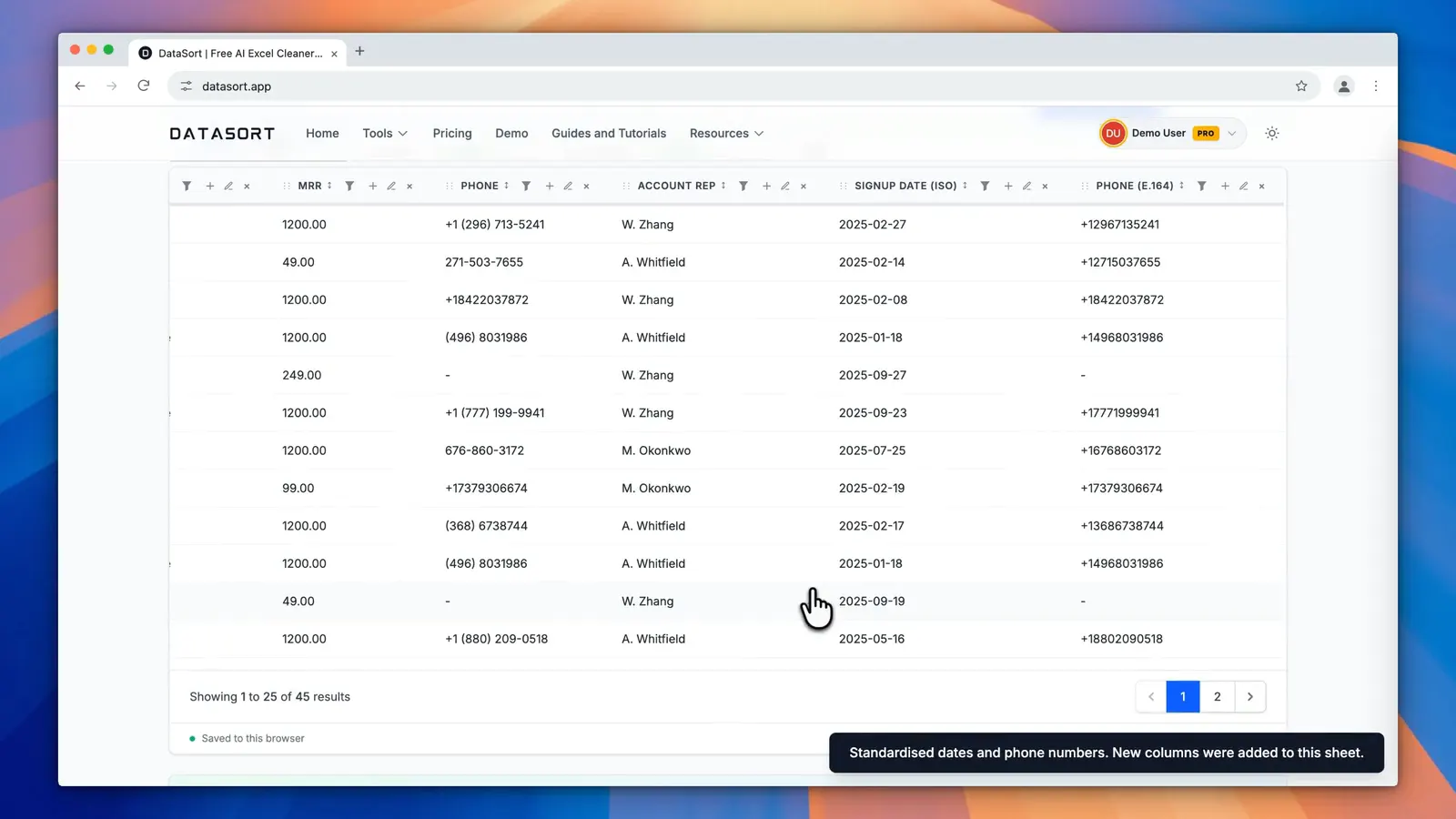
How to extract and standardize in DataSort
Pull dates, phone numbers or emails into clean new columns in one format.
Step by step
-
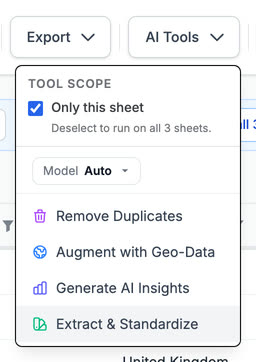
Open AI Tools and choose Extract and Standardize.
-
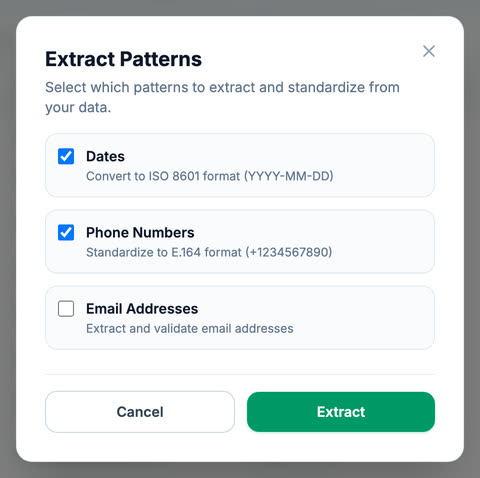
Choose what to pull out: dates, phone numbers, emails, or all three.
-
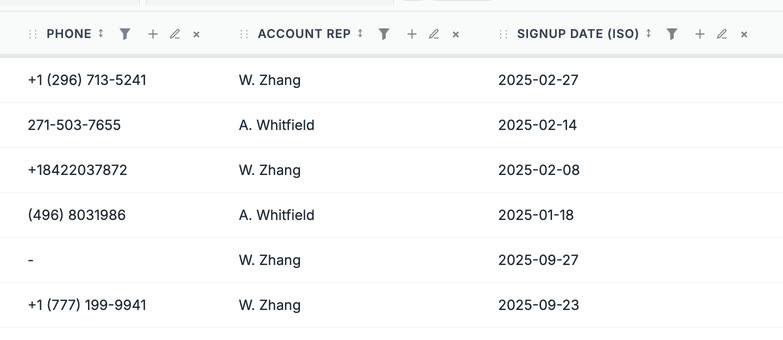
Select Extract. New columns hold every value in one format, and your original columns stay as they were.


Ask the AI
How to ask the AI assistant in DataSort
Tell the assistant what you want done to your data, and it makes the change.
Step by step
-
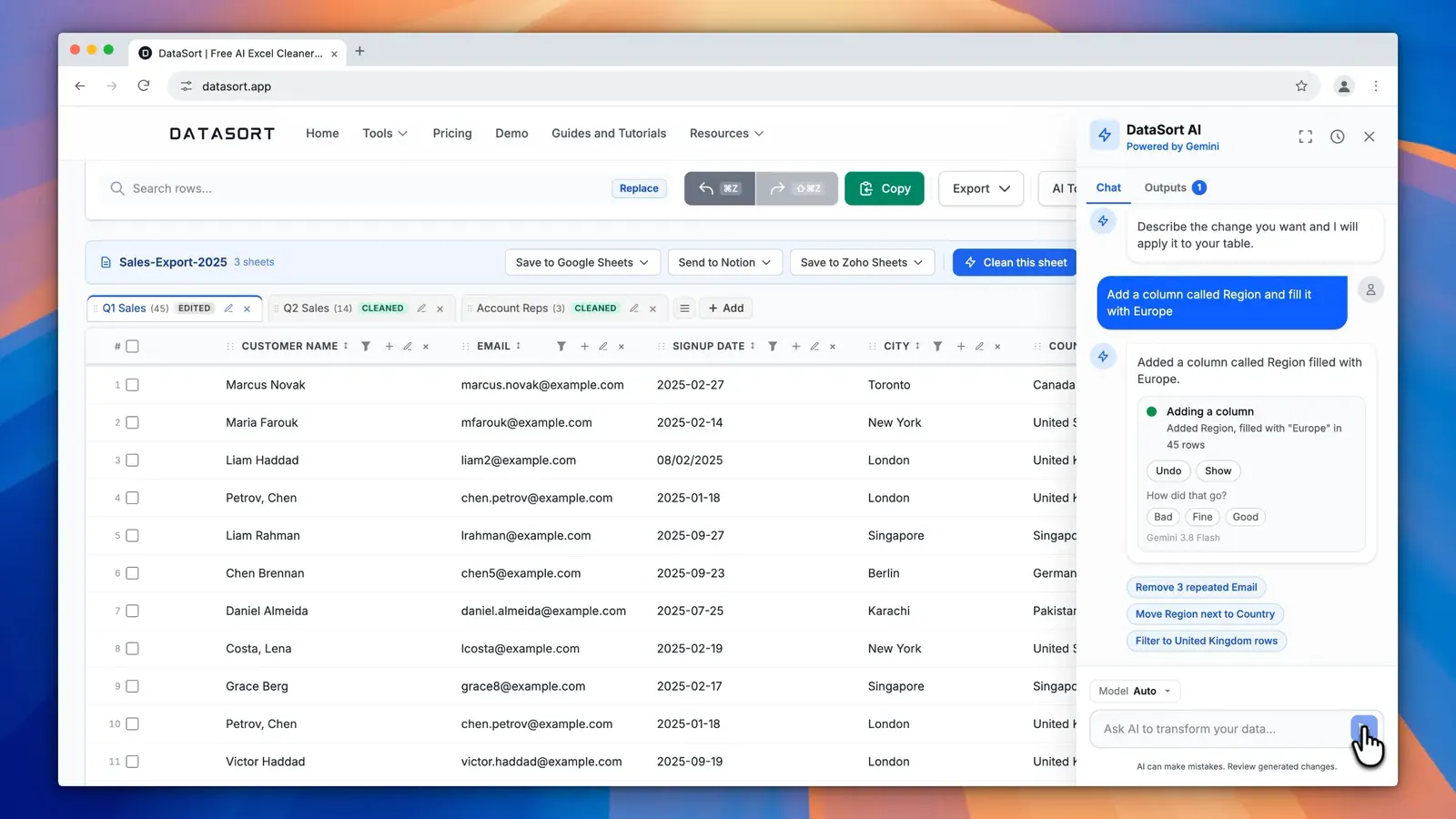
Select AI Copilot at the bottom right to open the assistant beside your table.
-
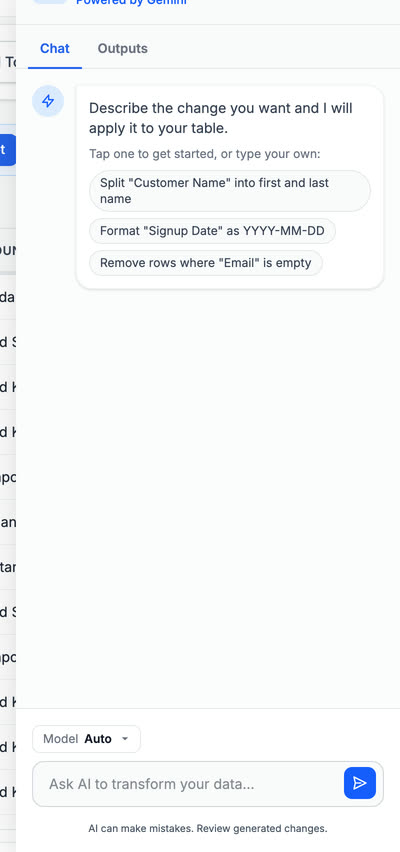
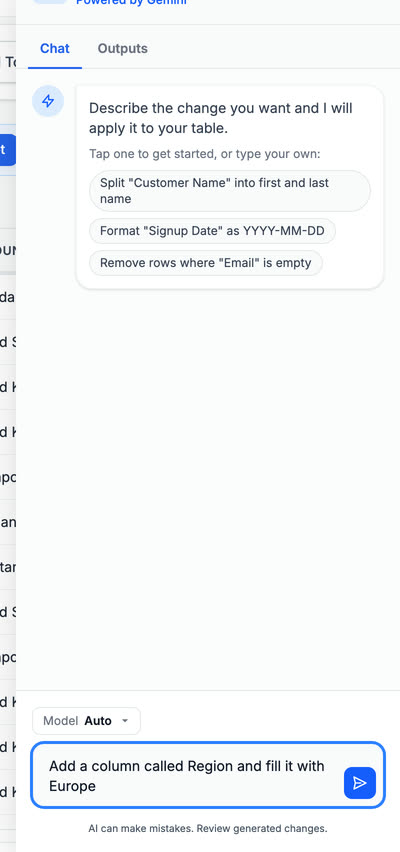
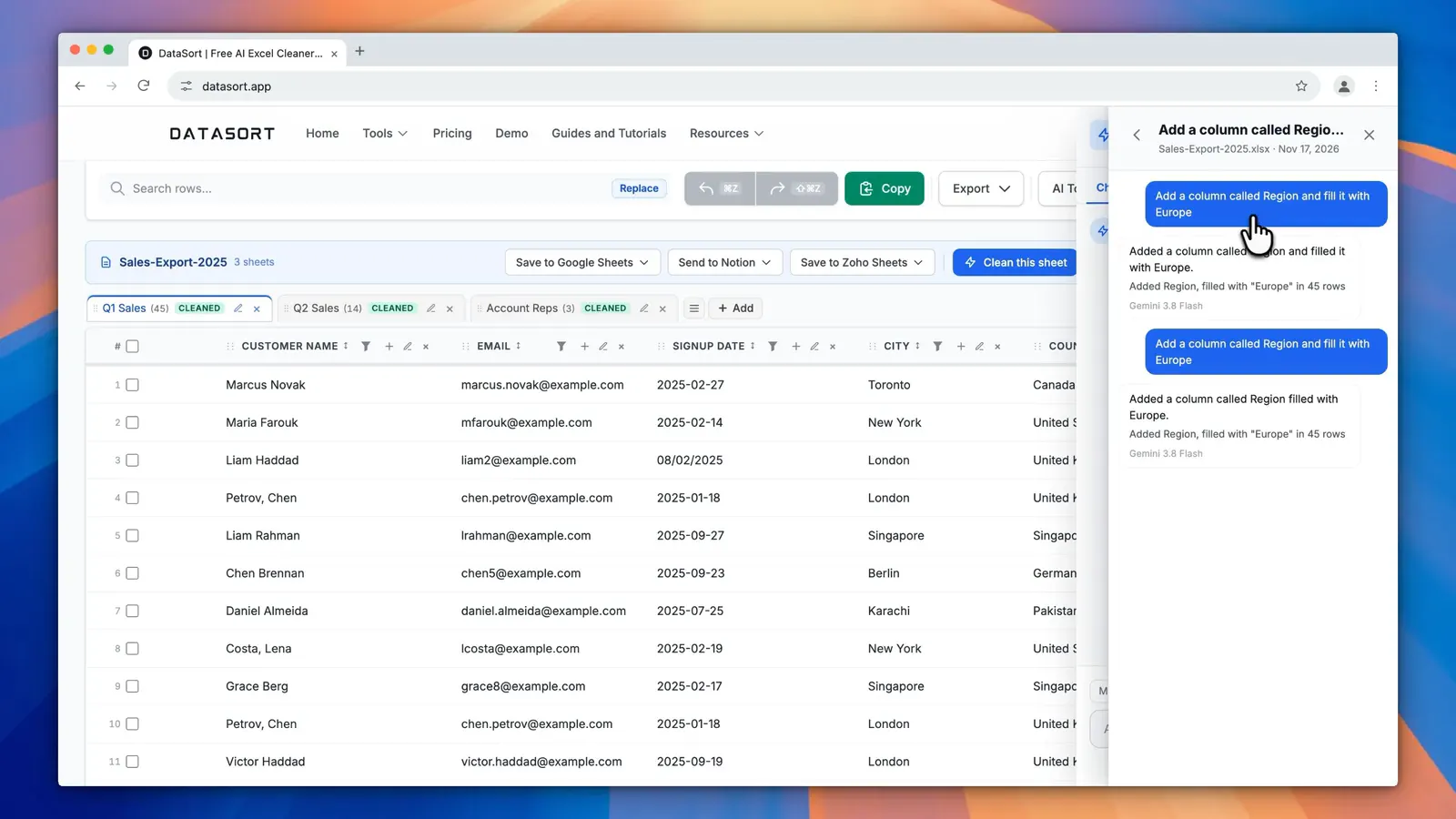
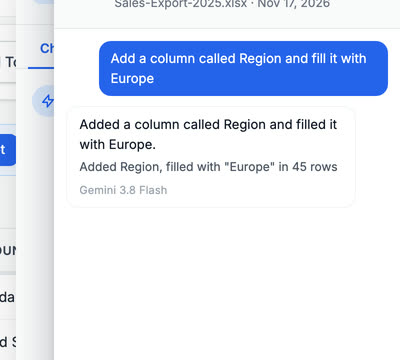
Write what you want in plain words, such as add a column called Region and fill it with Europe, and send it.
-
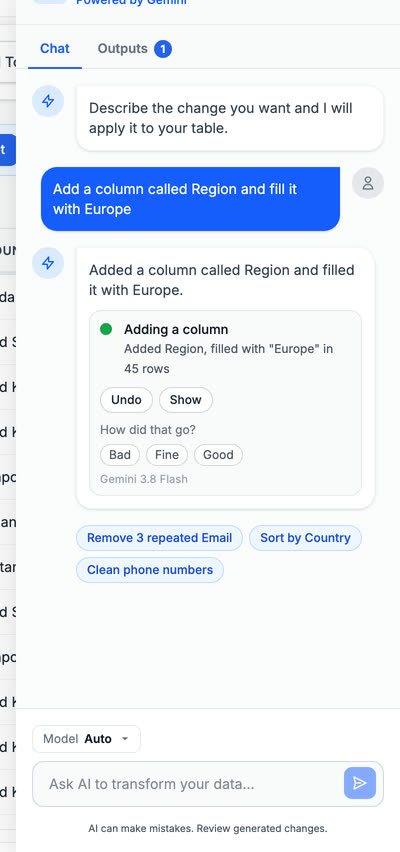
The assistant makes the change, says what it did, and offers Undo right in the chat.


Ask the AI
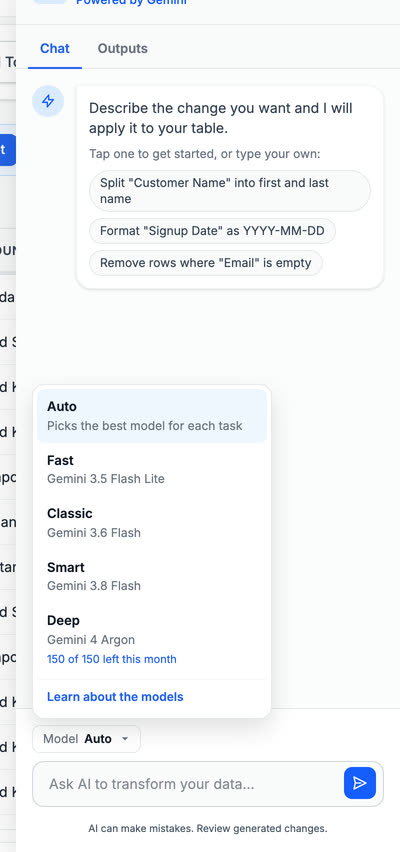
How to choose the AI model in DataSort
Pick Auto, Fast, Classic, Smart or Deep for the assistant and the AI tools.
Step by step
-
In the assistant, select the model name above the message box to see every model and what it is best for.
-
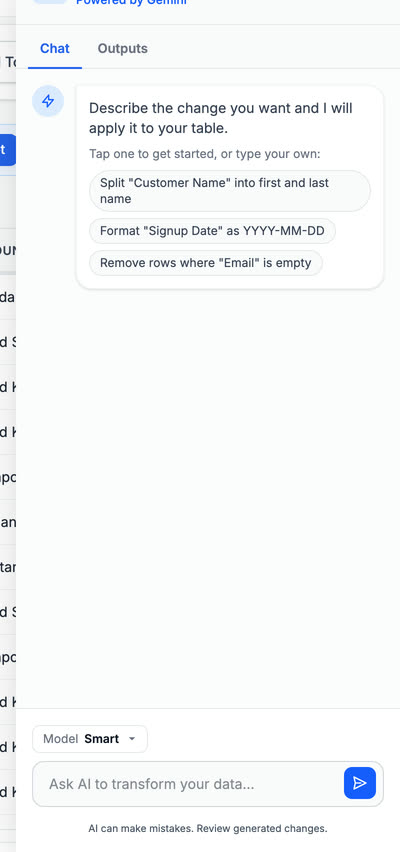
Choose one. Auto picks for you, and the same choice is in the AI Tools menu.


Ask the AI
How to find an earlier chat in DataSort
Your assistant chats are saved, one for each workbook, so you can read them again.
Step by step
-
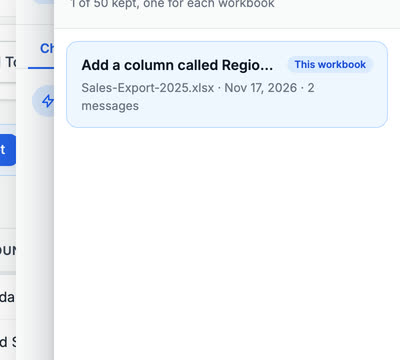
In the assistant, select the clock at the top to list your earlier chats.
-
Select a chat to read it again, with any reports it made.


Ask the AI
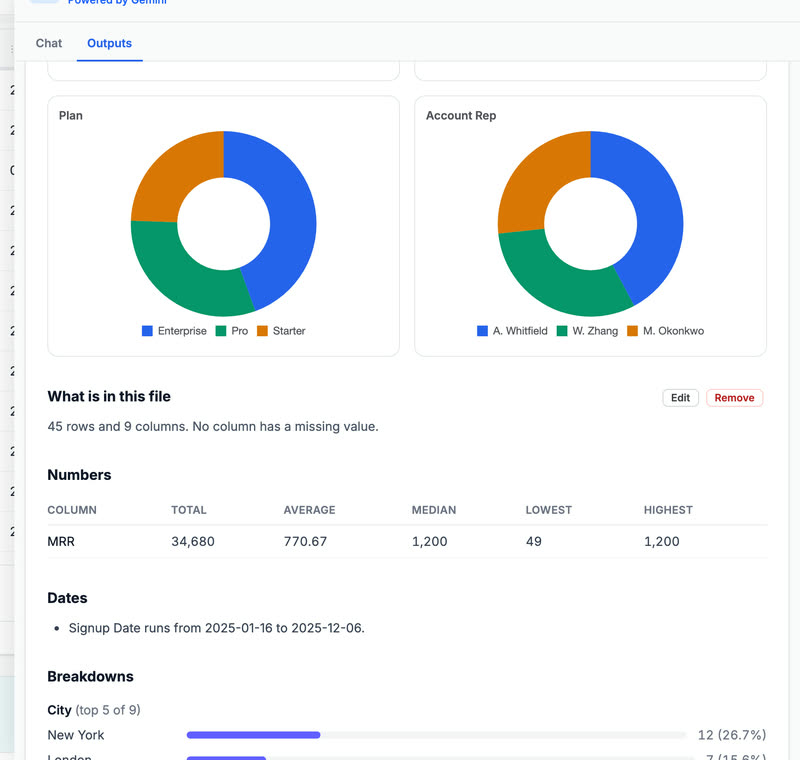
How to get an AI Insights report in DataSort
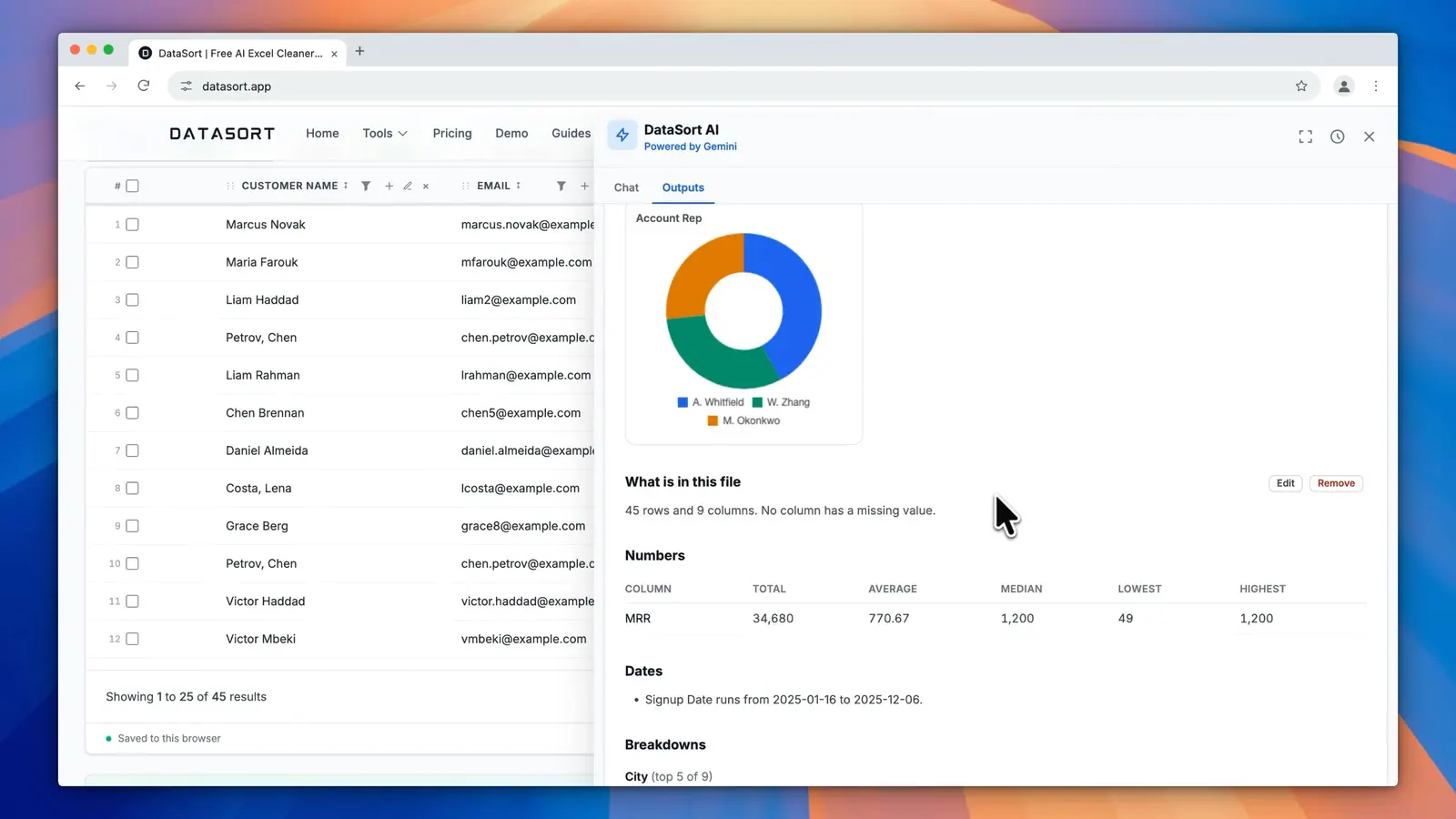
A written report on your sheet with charts, every figure measured from your data.
Step by step
-
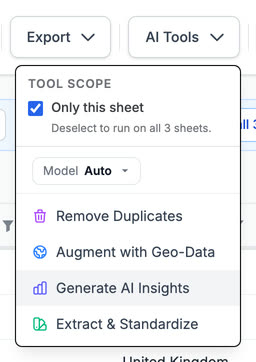
Open AI Tools and choose Generate AI Insights.
-
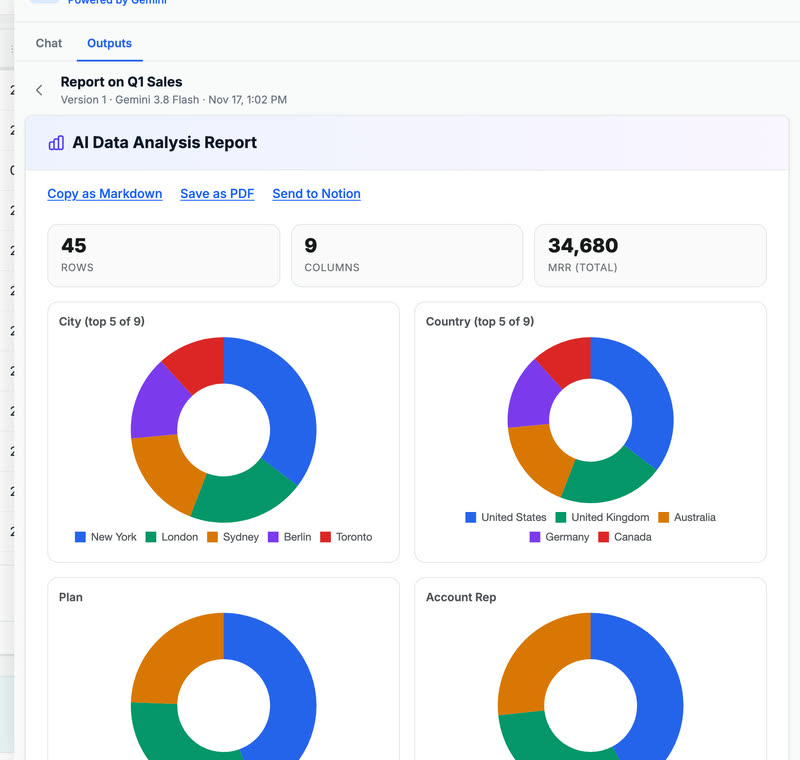
The report opens beside your table, with totals, charts and what stands out.
-
Edit or remove any section, then Copy as Markdown or Save as PDF.


Ask the AI
How to add map coordinates in DataSort
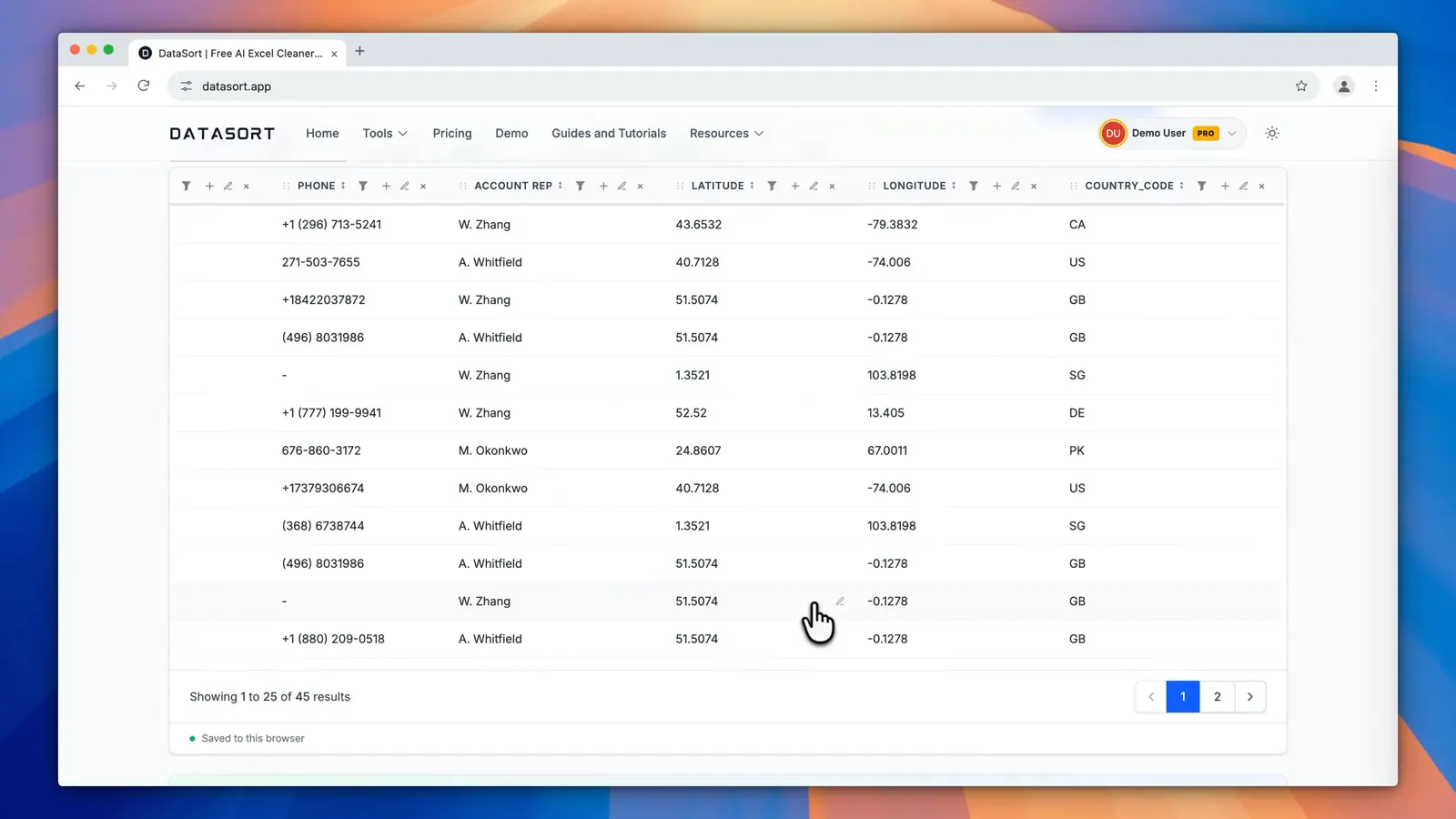
Turn a city or address column into latitude, longitude and a country code.
Step by step
-
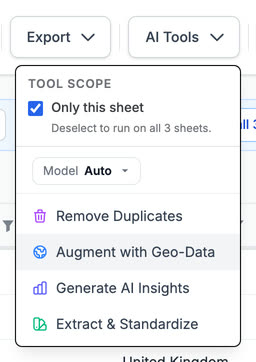
Open AI Tools and choose Augment with Geo-Data.
-
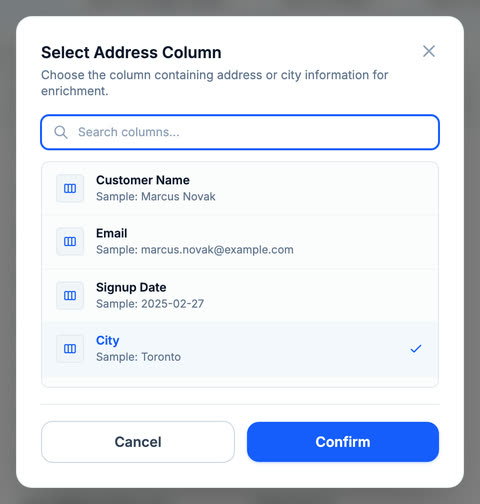
Choose the column with the place names. City is picked for you when there is one.
-
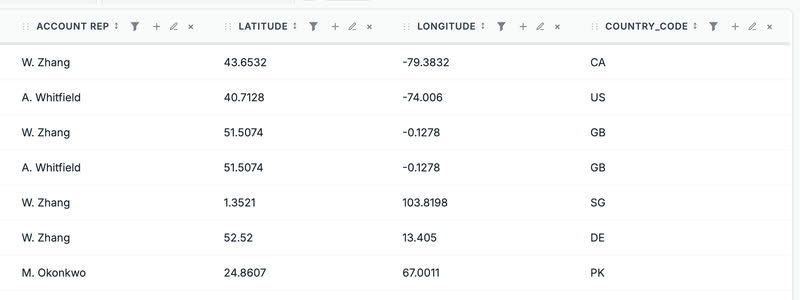
Select Confirm. Latitude, Longitude and Country_Code columns are added for every row.


Compare files
How to compare two Excel files in DataSort
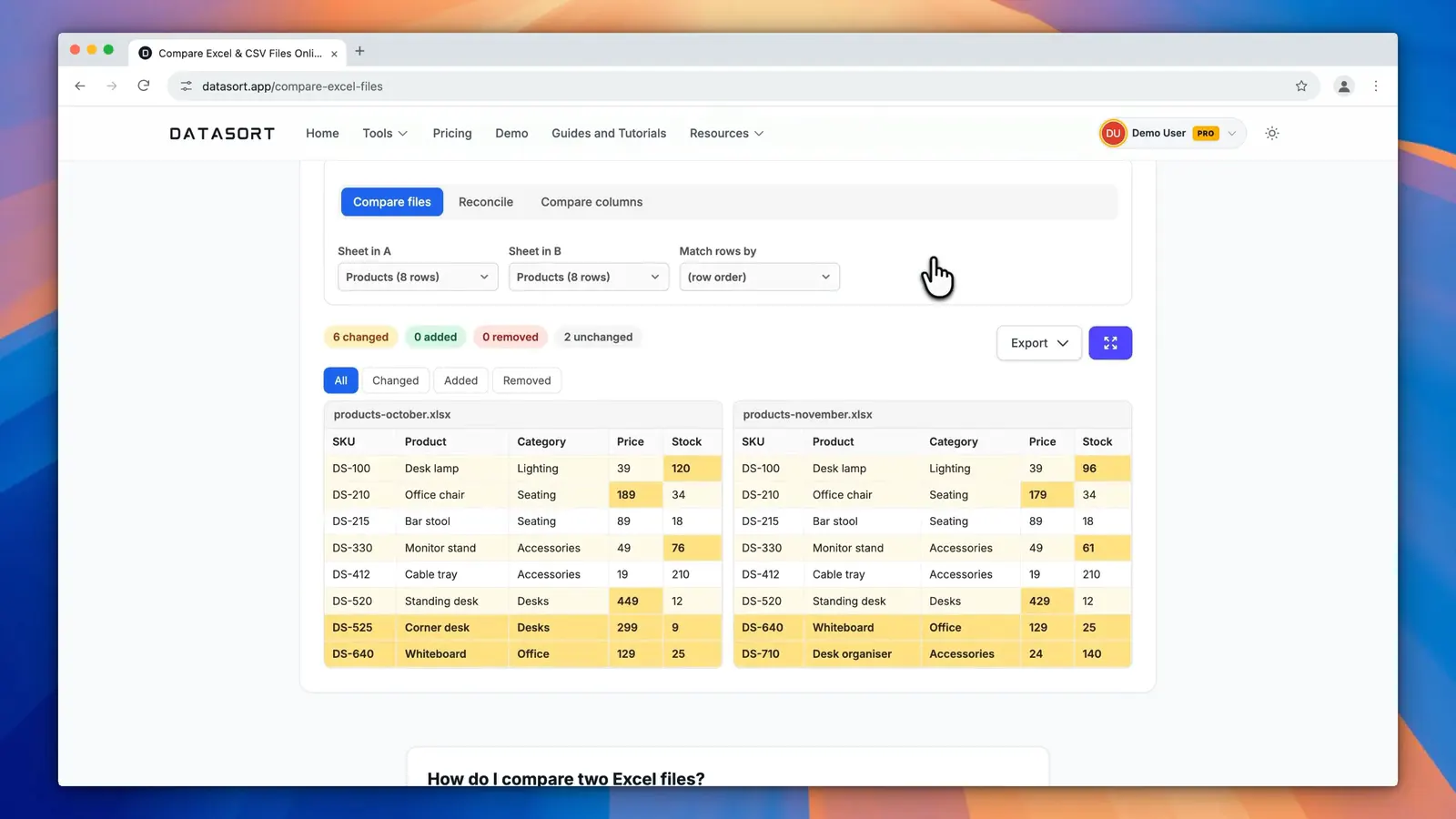
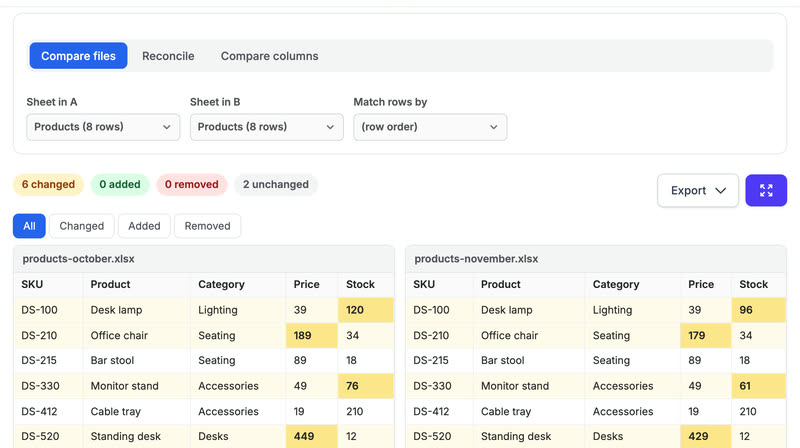
See every row and cell that changed between two versions of a spreadsheet.
Step by step
-
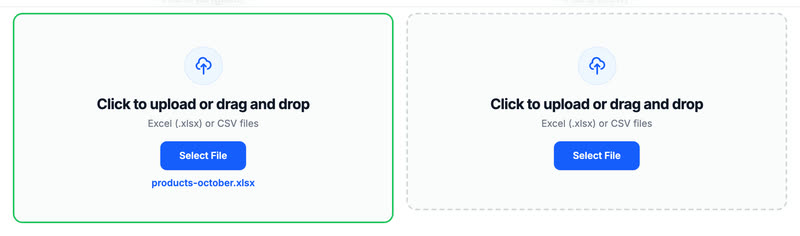
Add the first file, the older version, on the left.
-
Add the newer version on the right. The comparison runs on its own.


Compare files
How to compare two JSON files in DataSort
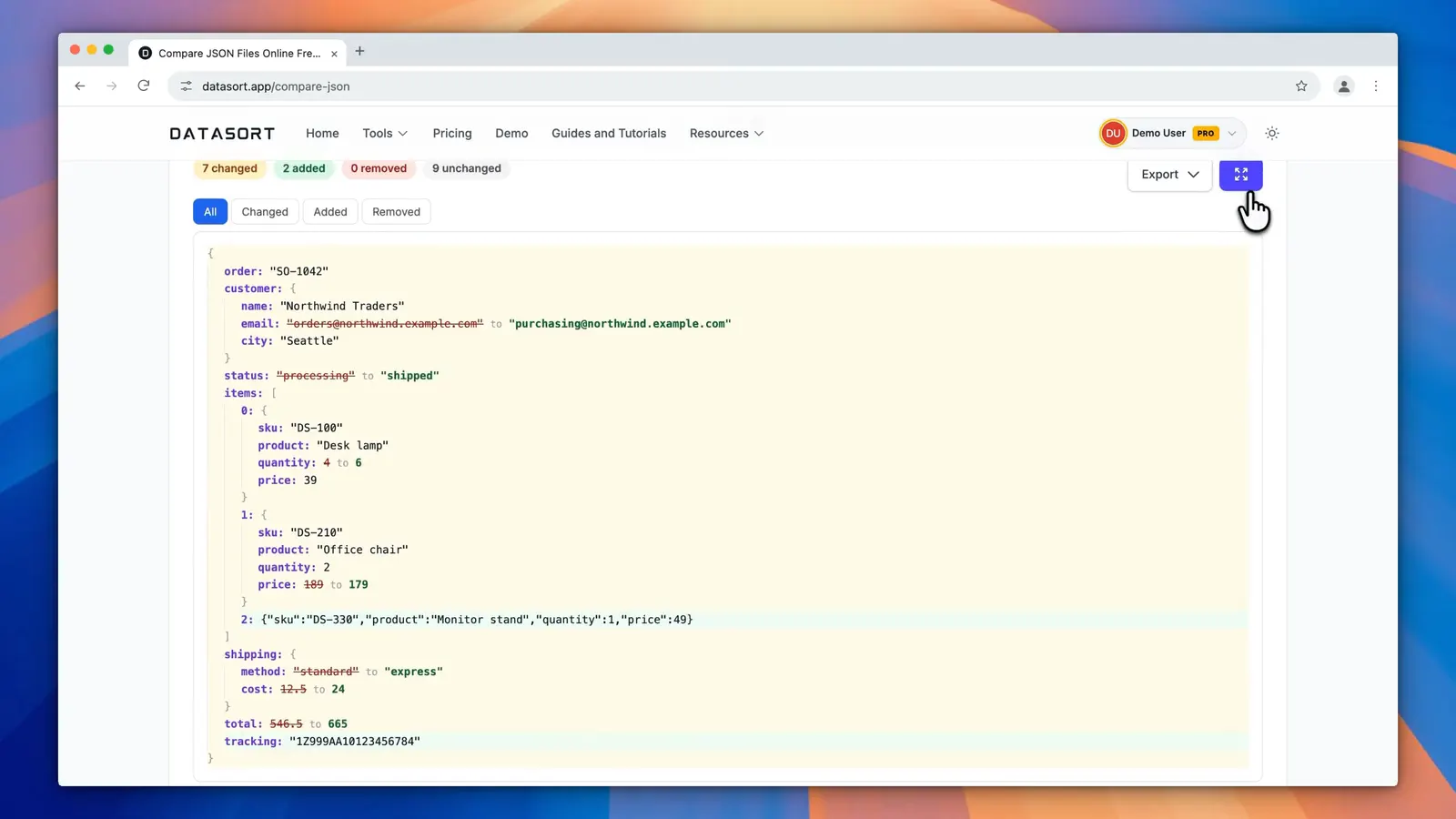
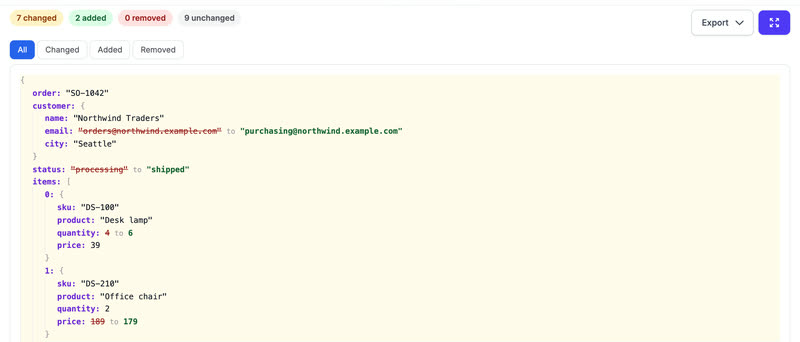
See every value that was added, removed or changed between two JSON documents.
Step by step
-
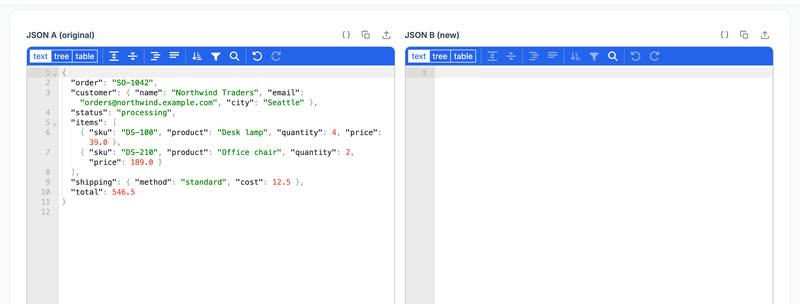
Paste the original JSON on the left, or select the upload button to open a file.
-
Add the new version on the right. Every difference is listed by its path, such as status or items.


Export your data
How to export your data in DataSort
Download the sheet as Excel, CSV or JSON, or copy it.
Step by step
-
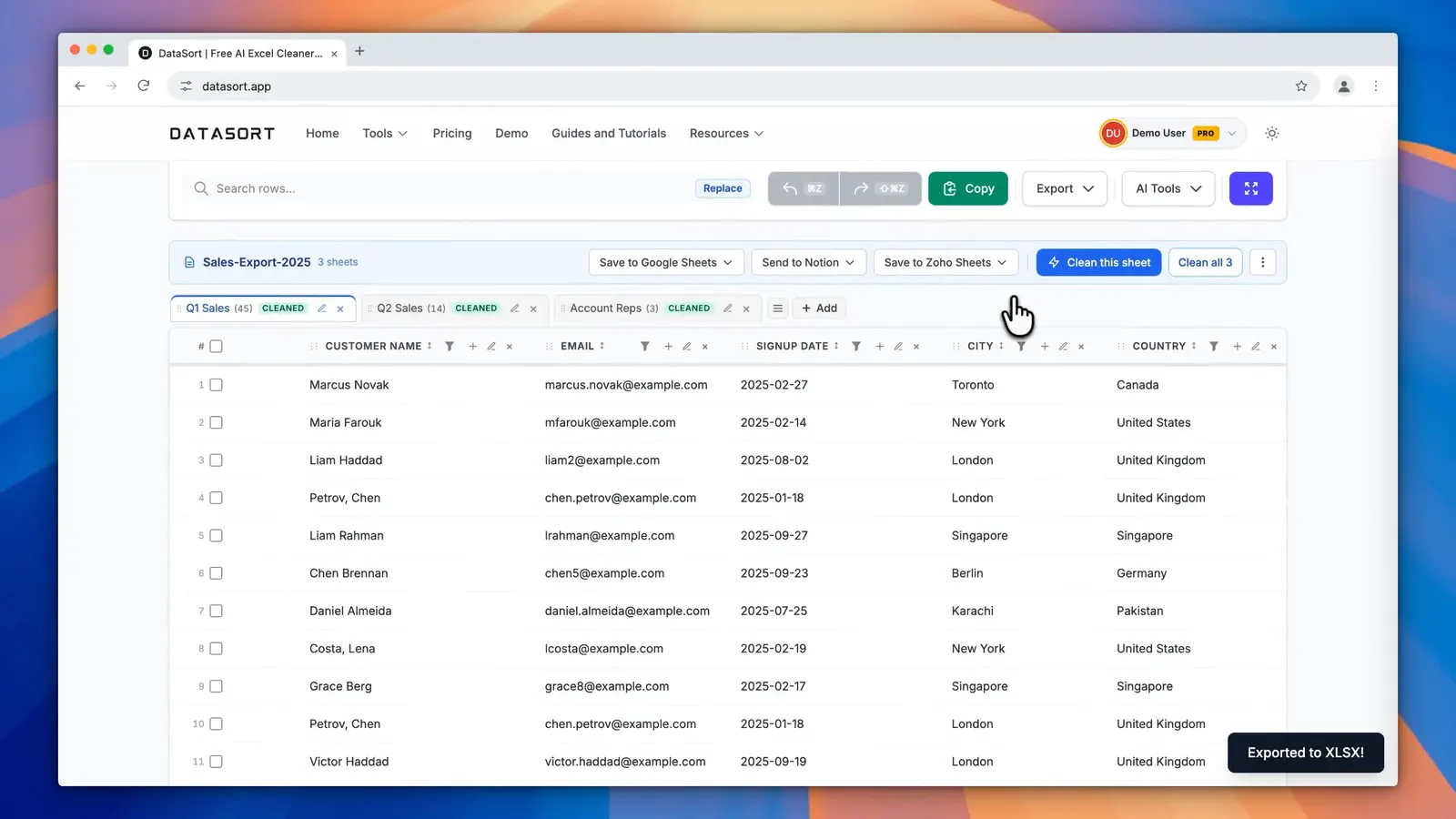
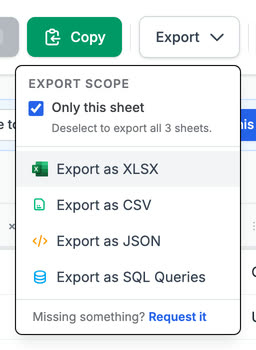
Open Export and choose Excel, CSV or JSON. The file downloads straight away.
-
To export every sheet as one workbook, deselect Only this sheet first.

Export your data
How to convert Excel to SQL in DataSort
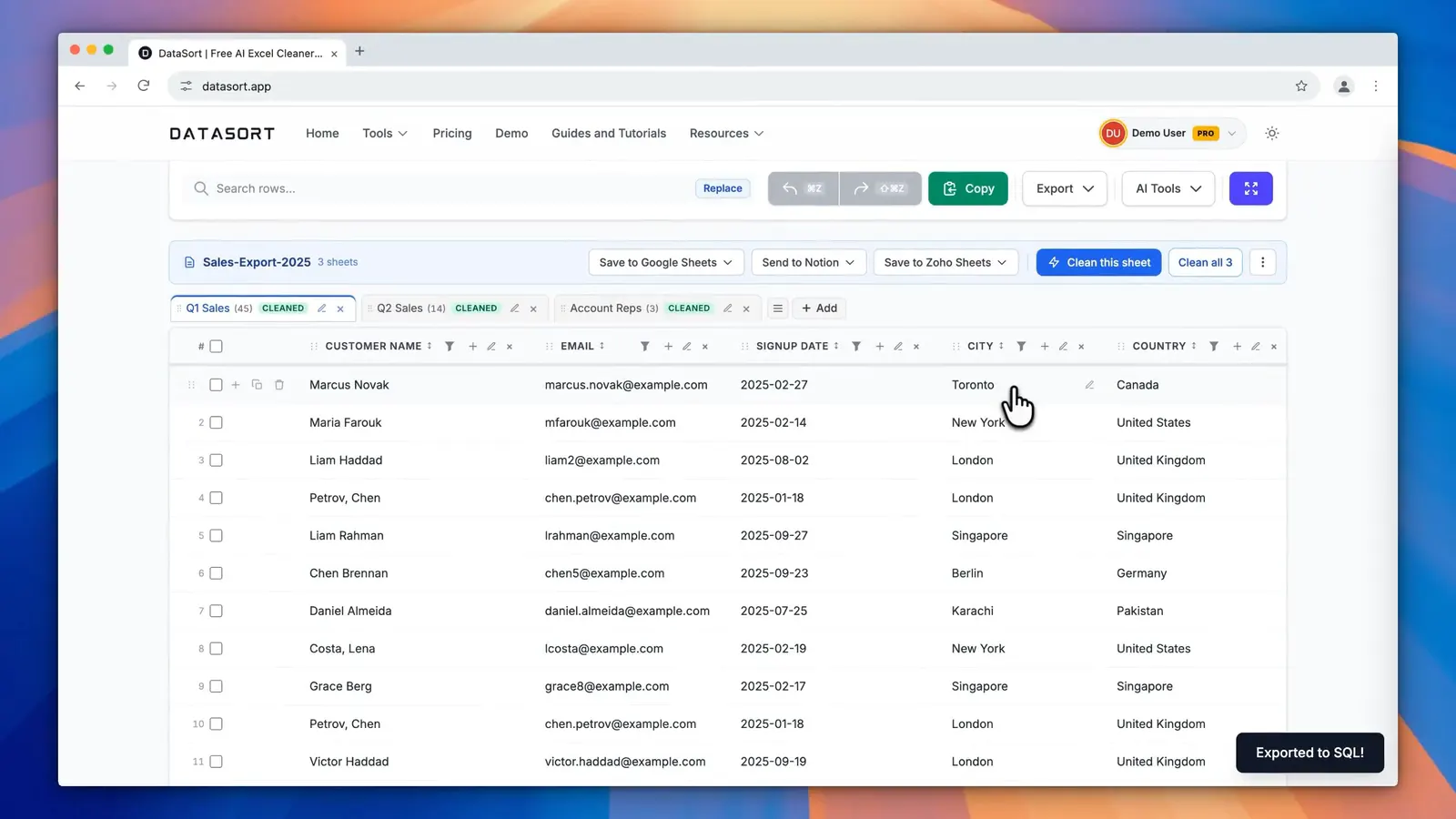
Turn a sheet into SQL INSERT statements. Mid and Pro, or a Day Pass.
Step by step
-
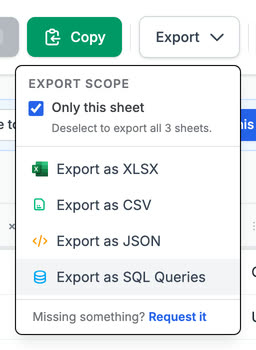
Open Export and choose SQL.
-
A .sql file downloads with one INSERT statement per row, ready to run in your database.


Export your data
How to copy the table in DataSort
Copy the rows you see, ready to paste into Excel, Google Sheets or an email.
Step by step
-
Select Copy above the table. The rows the table shows, with any filter applied, are copied to paste anywhere.